> For the complete documentation index, see [llms.txt](https://docs.ins-pi.com/llms.txt). Markdown versions of documentation pages are available by appending `.md` to page URLs; this page is available as [Markdown](https://docs.ins-pi.com/blueprints/personalize/settings.md).
# Settings and Accessibility
Set it. Save it. Use it.
YouDesign Blueprints saves your preferences for your account, so themes, accessibility options, canvas grid, language, and favorites are still there next time you open the app.
{% hint style="info" %}
Settings live inside the YouDesign Blueprints app, scoped to ServiceNow under `x_inpi_ydbp`. **Each person has their own settings**, so what you change here doesn't affect anyone else in your instance.
{% endhint %}
## Open Settings
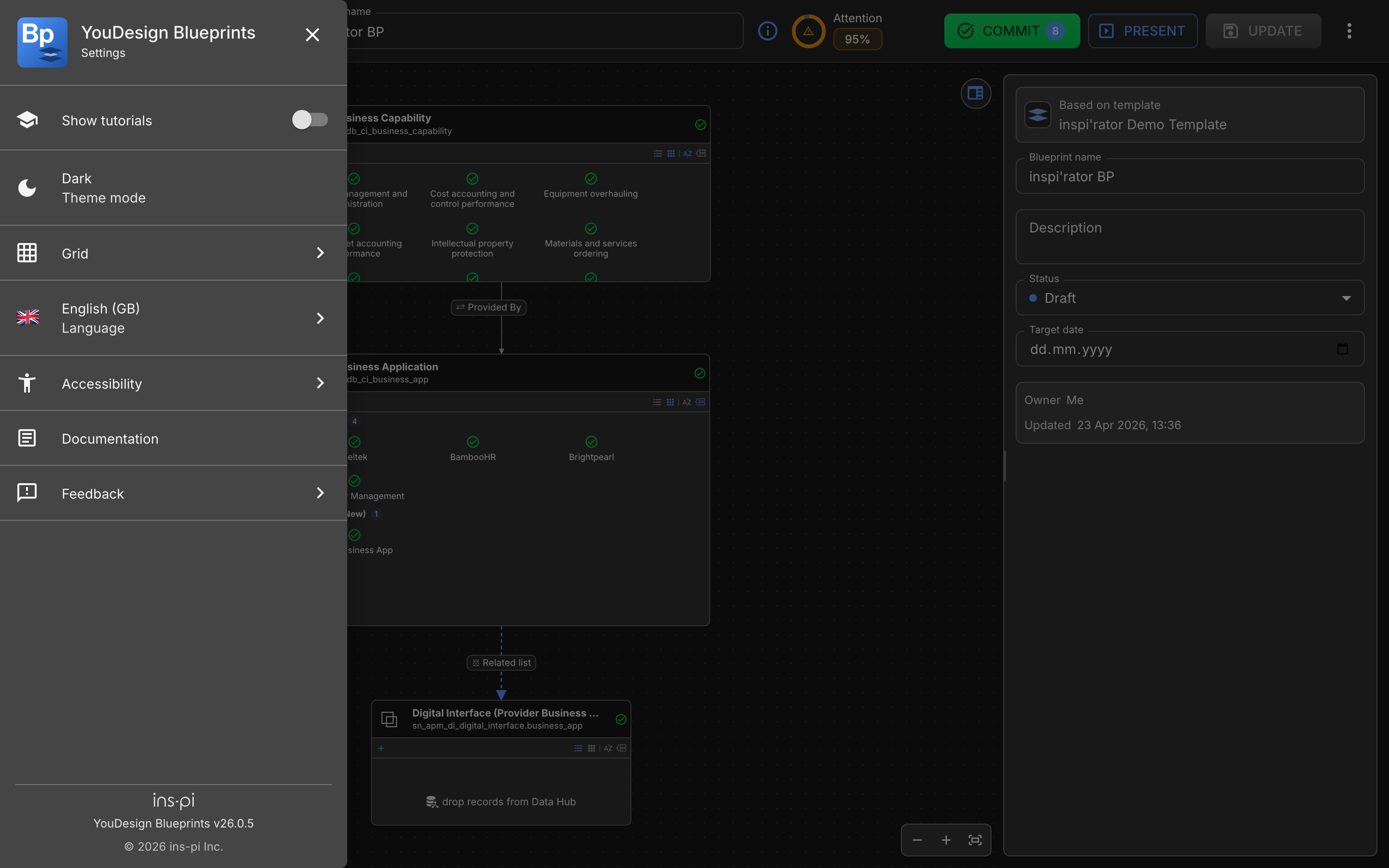
Settings are per person. Your installed version is at the bottom
Click the **Open menu** icon in the top-left of the app header and select **Settings**. The same settings apply everywhere in YouDesign Blueprints.
## Settings overview
| Setting | Options | What it changes |
| ------------------------------ | -------------------------------------------------------------------------------------------------- | ------------------------------------------------------------------------------------------------------------------------------------------ |
| **Show tutorials** | On or off | Controls whether contextual walkthroughs appear as you use the app. |
| **Theme mode** | **Light**, **Dark** | Changes the visual theme used across the application. |
| **Grid** | None, Line grid, Dot grid, Cross grid | Changes the grid style shown on the canvas. |
| **Snap to grid** | On or off | Snaps table cards to the grid as you move them. |
| **Language** | English (US), English (UK), German, Turkish, Spanish, Portuguese, French, Japanese, Hindi, Bengali | Changes the app interface language. Labels from ServiceNow records translate only when your ServiceNow instance has translations for them. |
| **Precise Selection** | On or off | Tightens click targets so it is easier to select the right record on a dense canvas. |
| **Reduce Motion** | On or off | Reduces or turns off animations across the app. Useful if motion makes you uncomfortable or distracts from content. |
| **High Contrast** | On or off | Increases contrast to improve readability and distinction between UI records. |
| **Single-Character Shortcuts** | On or off | Enables the canvas zoom shortcuts `+`, `-`, and `0`. |
## Language
Changing the language updates the YouDesign Blueprints interface (buttons, menus, and dialogs) immediately. Labels that come from ServiceNow records, like table and field names, only appear translated if your ServiceNow instance has translations for them.
## Documentation and Feedback
Settings includes two help entries:
**Documentation** opens the published help center in a new browser tab. Use it to look something up without leaving your current blueprint.
**Feedback** opens a small menu with two options: report a bug or request a feature. Both open your mail client with a pre-filled message and the right subject prefix.
**Report a bug:** Opens your mail client with a message addressed to `bugs@ins-pi.com`, subject prefixed `[BUG]`, and a template asking what you were doing, what you expected, what actually happened, and any screenshots.
**Request a feature:** Opens the same flow with subject prefixed `[FEATURE]` and a template asking what problem you want to solve, who would benefit, and any references that inspired the idea.
{% hint style="info" %}
Both feedback emails include a diagnostic block at the bottom with your app version, page, ServiceNow instance, theme, language, browser, and timestamp. Leave it intact so support can reproduce what you were seeing.
{% endhint %}
## Roles menu
On **Home**, your avatar menu also shows the Blueprints roles currently assigned to you.
This is useful when you want to confirm whether you are working as a **Blueprint Template Editor**, **Blueprint Editor**, **Blueprint Committer**, or **Blueprint Viewer**.
---
# Agent Instructions
This documentation is published with GitBook. GitBook is the documentation platform designed so that both humans and AI agents can read, navigate, and reason over technical content effectively. Learn more at gitbook.com.
## Querying This Documentation
If you need additional information that is not directly available in this page, you can query the documentation by asking a question.
Perform an HTTP GET request on the following URL with the `ask` and `goal` query parameters:
```
GET https://docs.ins-pi.com/blueprints/personalize/settings.md?ask=&goal=
```
`ask` is the immediate question: it should be specific, self-contained, and written in natural language.
`goal` is what the user is ultimately trying to achieve, the reason they need the answer. Sharing it helps GitBook give you a better, more relevant answer. A goal is most helpful when it describes the outcome the user wants rather than restating the question. For example, with `ask=how do I create an API token`, a goal like `automate deployments from our CI pipeline` lets GitBook tailor the answer to that use case.
The response will contain a direct answer to the question and relevant excerpts and sources from the documentation.
Use this mechanism when the answer is not explicitly present in the current page, you need clarification or additional context, or you want to retrieve related documentation sections.