> For the complete documentation index, see [llms.txt](https://docs.ins-pi.com/llms.txt). Markdown versions of documentation pages are available by appending `.md` to page URLs; this page is available as [Markdown](https://docs.ins-pi.com/blueprints/work-in-the-app/home.md).
# Home and Search
Home is where the work starts. Search. Create. Manage. Audit. Everything you open in the app begins here.
{% hint style="info" %}
Home is a ServiceNow page in the YouDesign Blueprints scope. What you see depends on your role, ACLs, and table access. Sections and actions you cannot use are hidden. See [Roles and Permissions](/blueprints/start-here/roles-and-permissions.md) for the full matrix.
{% endhint %}
## Templates
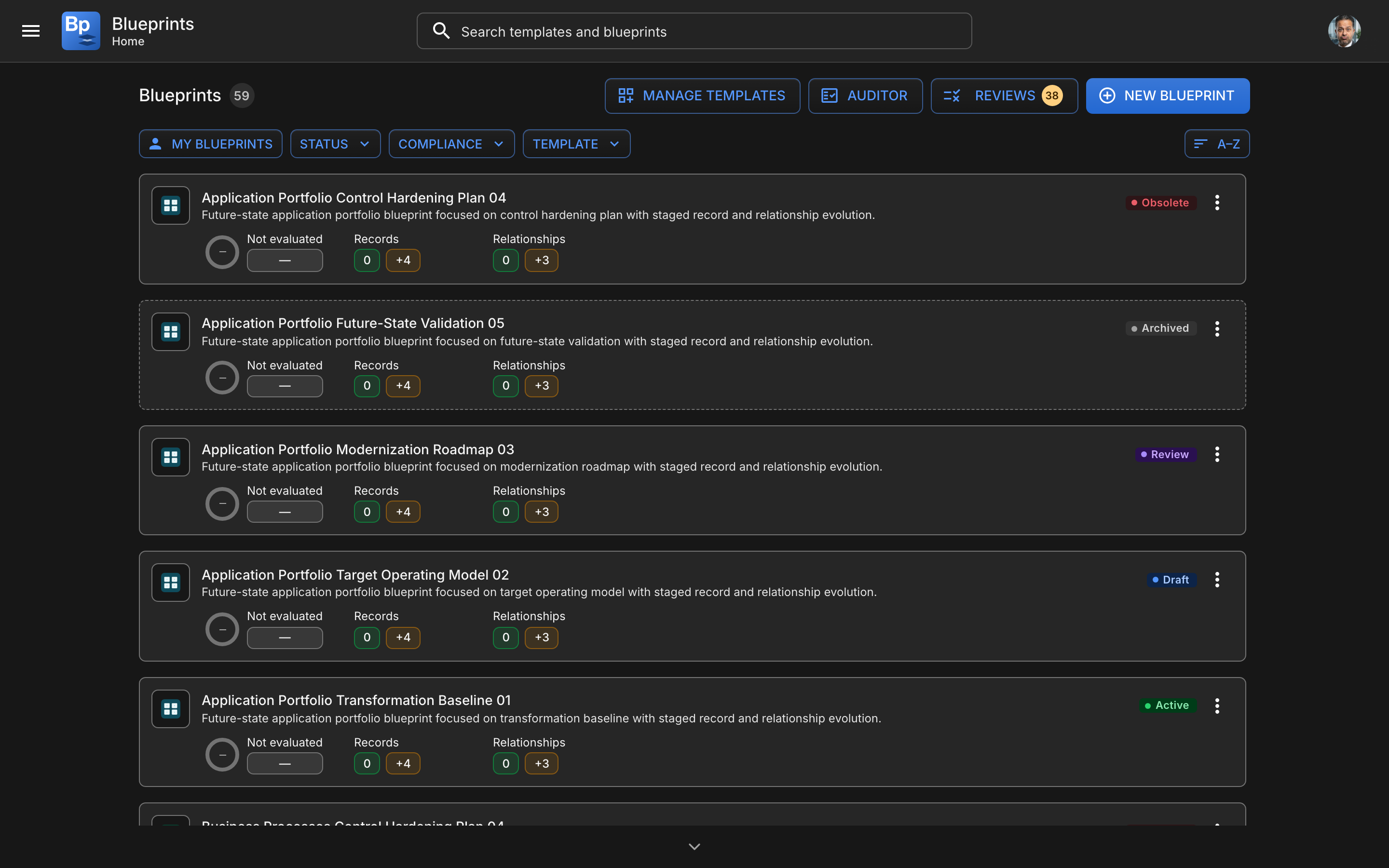
Home: your blueprints, with the four things you can do next along the top
Use this section when you want to start from structure.
You can:
* browse available templates
* mark templates as favorites
* reorder favorite templates
* expand a template to inspect its tables, relationships, and rules
* create a new blueprint from a selected template
If you are a Blueprint Template Editor, you can also open **Manage Templates** from Home.
## Blueprints
Use this section when you want to continue existing work.
Each blueprint card shows:
* the template it is based on
* the blueprint name
* the lifecycle status
* the compliance score
* current counts for records and relationships
* pending changes such as future-state additions or relationship deletions
* an **Open** or **View** action depending on your role
## Search on Home
The top search field searches across both templates and blueprints.
Search is useful when you know the name of a template or blueprint but do not want to scroll through long lists.
{% hint style="info" %}
Press **Ctrl+F** or **Cmd+F** to jump straight to the Home search field.
{% endhint %}
## Blueprint filters
Use the filter row above the blueprint list to narrow what you see.
You can filter by:
* **My Blueprints**
* **Status**
* **Compliance**
* **Template**
You can also sort the blueprint list by:
* **Recent**
* **Oldest**
* **A–Z**
* **Z–A**
These preferences are stored per user, so the app remembers how you like to work.
## Favorites
Mark templates as favorites to keep the ones you use most at the top of the list.
Favorites are useful when:
* your organization has many templates
* most users work repeatedly with a small set
* you want important templates to stay at the top
Favorites appear first in the template chooser and can be reordered.
## Creating a blueprint from Home
On Home, click **New Blueprint** to open the **Select a Template** dialog. Then:
1. Search by name or filter by **Category** to find the right template
2. Click the chevron on a template to inspect its tables, relationships, and rules first if you want
3. Click the template to create the blueprint
The new blueprint opens directly in the Blueprint Editor.
## Managing templates from Home
**Manage Templates** opens a side panel where you can:
* search templates
* filter by template category
* create a new template
* edit an existing template
* rename, duplicate, or delete a template
## Opening Auditor from Home
**Auditor** checks records against a template's rules. Open it from Home to run a compliance spot-check.
When you open Auditor:
1. choose a template
2. review the template rules
3. select records to audit against those rules
See [Compliance and Auditor](/blueprints/review-and-share/compliance.md) for the full workflow.
## Blueprint card actions
The blueprint menu can include these actions:
* **Present**
* **Compliance Overview**
* **Commit Changes**
* **Rename**
* **Duplicate**
* **Copy link**
* **Share via email**
* **Delete**
{% hint style="info" %}
**Tips for working on Home**
* Use **favorites** to reduce template clutter
* Use **My Blueprints** when you only want your own work
* Open **Compliance Overview** before sharing a blueprint widely
* Use **Present** instead of edit mode during stakeholder meetings
{% endhint %}
---
# Agent Instructions
This documentation is published with GitBook. GitBook is the documentation platform designed so that both humans and AI agents can read, navigate, and reason over technical content effectively. Learn more at gitbook.com.
## Querying This Documentation
If you need additional information that is not directly available in this page, you can query the documentation by asking a question.
Perform an HTTP GET request on the following URL with the `ask` and `goal` query parameters:
```
GET https://docs.ins-pi.com/blueprints/work-in-the-app/home.md?ask=&goal=
```
`ask` is the immediate question: it should be specific, self-contained, and written in natural language.
`goal` is what the user is ultimately trying to achieve, the reason they need the answer. Sharing it helps GitBook give you a better, more relevant answer. A goal is most helpful when it describes the outcome the user wants rather than restating the question. For example, with `ask=how do I create an API token`, a goal like `automate deployments from our CI pipeline` lets GitBook tailor the answer to that use case.
The response will contain a direct answer to the question and relevant excerpts and sources from the documentation.
Use this mechanism when the answer is not explicitly present in the current page, you need clarification or additional context, or you want to retrieve related documentation sections.