Records and Relationships
Structure first, then content.
Records and relationships live inside a blueprint, which is a ServiceNow record under the x_inpi_ydbp scope. What you can do depends on your role. See Roles and Permissions for details.
Once a blueprint exists, this is where you add, edit, review, and remove records, and where you work with the relationships between them.
Add records from the Data Hub

The Data Hub is the source list for the records you can place into a blueprint.
To add a record:
Open the Data Hub
Select a source table
Search or browse the available records
Drag a record to the matching table card or double-click it
The app only accepts records in the matching table card, which helps keep the blueprint aligned with the template.
Class filters apply everywhere records arrive
If the template puts a filter on a table — Business Applications where criticality is high, capabilities at level 3 — that filter governs every route onto the canvas, not just search:
The Data Hub lists only records the filter admits, so the count beside the table is the filtered count.
Records pulled in automatically by following a relationship are checked too. If a record you drop relates to five applications and the filter admits two, three are left out and the app says how many.
Records already on the canvas are re-checked. One that stops matching after a filter is added or tightened is marked with a filter icon rather than a tick or a warning.
That last state matters. An excluded record is not being audited at all, so a tick would claim a check that never ran and a warning would send you to add a relationship the record does not need. What it needs is removing, or the filter widening.
What the icon beside a record means
Green tick
Relationship rules met, and every audited field filled
Amber warning
Relationship rules met, but an audited field is empty
Red warning
A relationship rule is not satisfied
Filter
Excluded by the template filter, so nothing is evaluated
Amber exists because green was overstating what had been checked. A record whose relationships are all correct but whose audited fields are blank is not complete, and the only way to find that out was to select the record and open its Fields tab.
Only fields marked Audit this field for completeness count towards amber. Every shown field would turn almost every record amber and make the colour worthless. This is the same set the scheduled audit reports on, so the canvas and the audit agree about what complete means.
The blueprint's compliance percentage counts these too, one check per record on a table that audits any field, so a canvas showing amber can no longer read 100%. One check per record rather than per field: a record is complete or it is not, and counting each field separately would let a table with five audited fields outweigh every relationship rule in the template. The compliance tooltip breaks out how many records are affected.
The Auditor still checks relationship rules only, and says so at the top of the page. Field completeness there is not yet implemented.
This is the same filter the scheduled audit uses to decide which records to evaluate. Before, the canvas could hold records the audit ignored — a blueprint could look complete while the compliance figure was measuring a different, smaller population.
Understand current-state and future-state items
Blueprints can contain two kinds of content.
Current-state records
These are based on records that already exist in ServiceNow.
Future-state records
These are planned items that do not exist yet.
Future-state items are useful when the blueprint is being used for planning, target architecture, migration preparation, or change design.
The app marks future-state content visually so it is easy to distinguish from current-state data.
Edit record fields
When you select an record on the canvas, the Data panel opens record-level editing.
The Fields tab can show text fields, choice fields, date and date-time fields, boolean values, numbers, and reference lookups.
Which fields appear depends on the template configuration for that table.
Review required information quickly
The record Fields tab highlights missing required information.
If there are issues, you can use the issue counter to filter the view down to missing fields only.
This is useful when a blueprint has many editable fields and you only want to see what still needs attention.
Work with relationships
When you select an record, the Relationships tab shows its incoming and outgoing relationships.
You can use it to review what is already connected, stage additional relationships, mark current relationships for removal, and inspect which relationship rules are currently satisfied or broken.
The tab also shows totals and issue counts so you can focus quickly on non-compliant connections.
When a rule carries conditions and fails, the message says what is actually short: "2 connected, 0 match the conditions", with the conditions listed beneath. A connected record that does not match them shows a neutral filter marker in that list instead of its own compliance tick — the record is not wrong, it just does not count towards this rule. Its own tick on the canvas is unaffected.
Understand relationship rules
Relationship rules come from the template.
They describe which relationship type is allowed, which direction the rule applies in, the minimum number of matches required, and the maximum number allowed if there is one.
This is why two tables can be connected visually but still show a compliance issue: the problem may be the count, not the existence of the relationship itself.
Suggested relationships on the canvas
The canvas can show suggested table-to-table relationships based on ServiceNow metadata.
These suggestions help users understand how the selected tables can connect before they start editing record-level relationships.
Suggested relationships can come from direct matches, inherited matches, and related-list metadata.
What a relationship requires
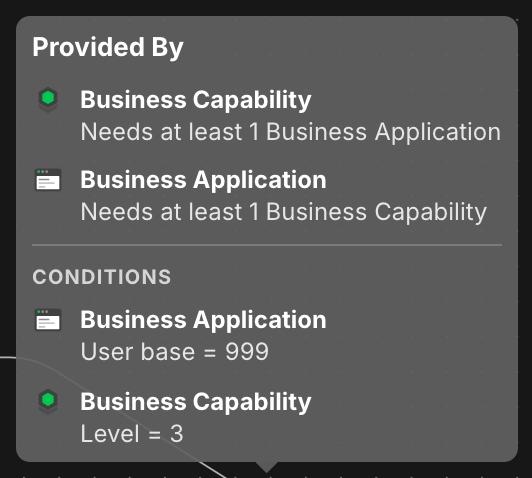
Hover any relationship on the canvas, or the info icon beside it in the panel, to see what it asks for.

Each row is one end of the relationship, led by that table's icon — the same icon as its card on the canvas, so you can match the row to the end you mean without reading two similar names.
Conditions lists the field conditions the rule applies, one line per table, against the table each one filters. Field names are shown by their label, so a condition reads Health = 1 rather than the column name behind it. A relationship with no conditions has no such section, so the absence is the answer.
A relationship that carries conditions is marked on the canvas with a C: n badge, so you can see it is conditional without hovering. The same badge appears beside the relationship in the panel, and in a template's contents when you expand it on Home.
Remove records
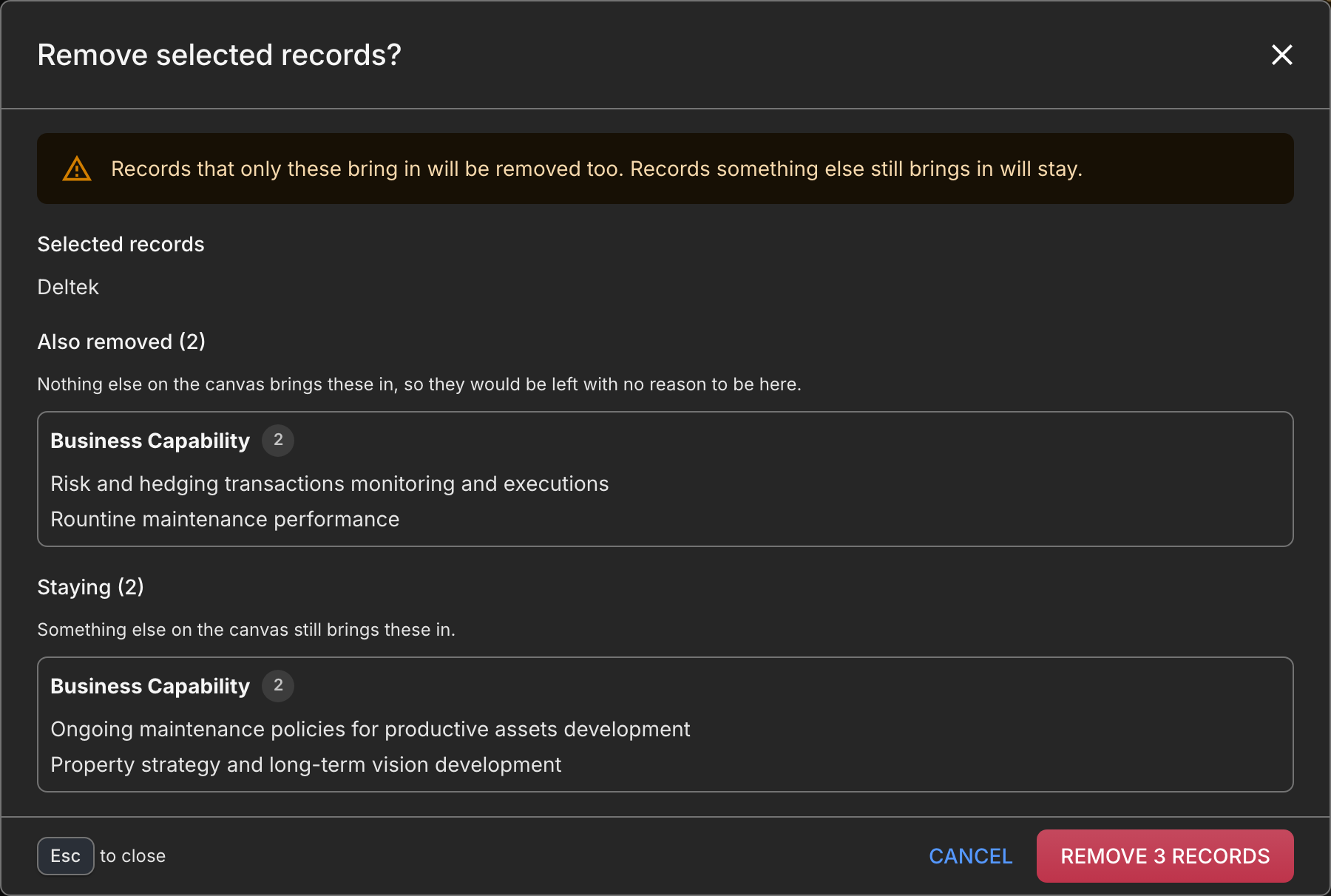
Removing a record is not always isolated. Most records on a canvas are not there because somebody chose them: they arrived by following a relationship from a record that was chosen. When the record that brought them in goes, they have no reason to stay.
So removal takes the selection plus every record that nothing else still brings in. A record something else still brings in stays.
Take a canvas holding two applications that share a capability. Removing the first application removes the capabilities only it brought in. The shared capability stays, because the second application still brings it in — and the removal stops there rather than following the shared capability into the second application.
Two kinds of record are never taken:
Records you added yourself, from the Data Hub. Removing an application's capabilities does not remove the application.
Future-state records. A future-state blueprint is built by adding and removing deliberately, and a cascade would undo that. Removing a future-state record only ever removes that record.
The preview
When a removal would take more than the selection, you see exactly what goes and what stays before anything happens.

Also removed are the records nothing else brings in. Staying are the ones something else still does — which is usually the thing you were unsure about when you started.
If nothing else would move, there is no dialog. The record is removed and a message says so.
Removal takes records off the blueprint canvas. It does not delete anything from your CMDB and does not stage a relationship change, so nothing about it reaches your data. See Save/Update versus Commit.
Organize the canvas
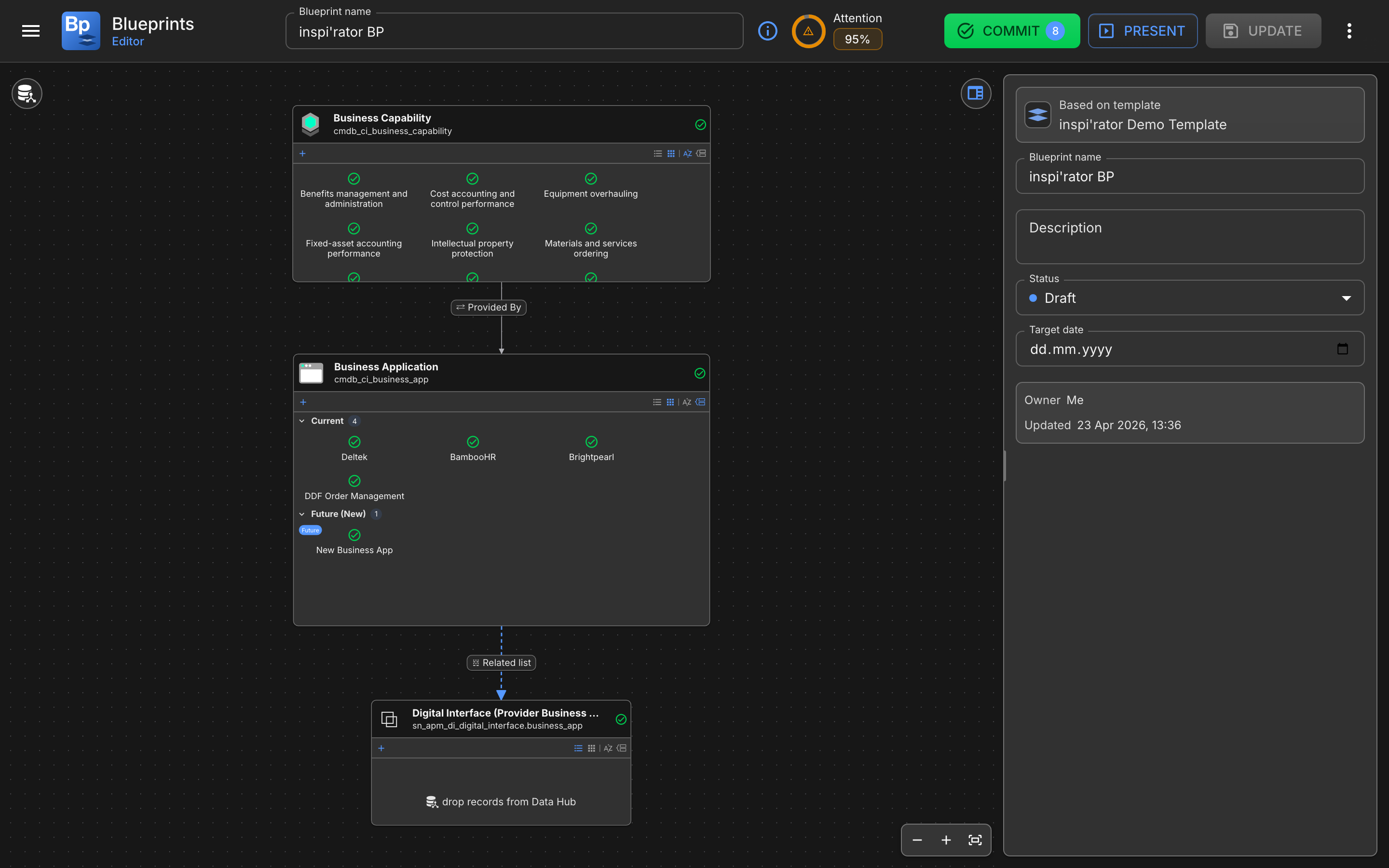
You can keep the blueprint readable by dragging table cards into a clearer layout, resizing them, using grid and snap settings, and using the canvas zoom and pan controls.
The blueprint stores its layout, so you can reopen it later without rebuilding the visual arrangement.
What changes in Presenter Mode
In Presenter Mode, Blueprint Viewers can still inspect records and relationships, but they cannot:
drag or resize table cards
change fields
stage relationship edits
save or commit
Last updated