> For the complete documentation index, see [llms.txt](https://docs.ins-pi.com/llms.txt). Markdown versions of documentation pages are available by appending `.md` to page URLs; this page is available as [Markdown](https://docs.ins-pi.com/command/features/architecture-governance.md).
# Architecture Governance
Run architecture reviews, review boards, decisions, conditions, waivers and architecture debt from one governance cockpit.
Architecture Governance takes a proposal from first review through a board decision and the follow-through that comes after it. Reviewers decide gates, the architecture review board (ARB) works an agenda, and every decision, condition, waiver and piece of debt stays attached to the record it is about. Everything is read from and written to your ServiceNow instance.
## What it is
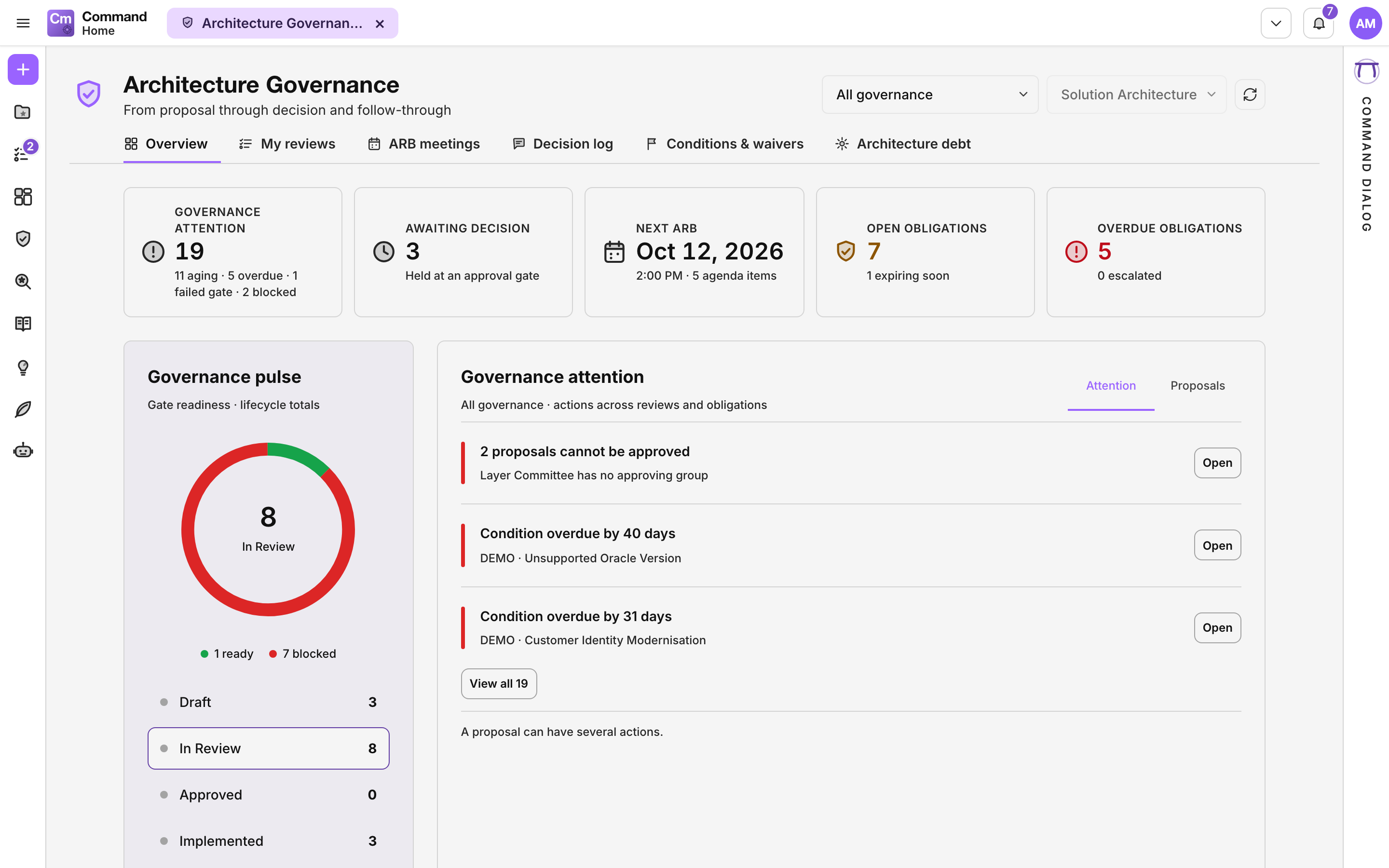
A full-page view called **Architecture Governance**, with the subtitle **From proposal through decision and follow-through**. It has six tabs.
The Architecture Governance Overview
| Tab | What it is for |
| ------------------------ | ------------------------------------------------------------------------------------------------------------------------- |
| **Overview** | The cockpit: what needs attention, what is waiting for a decision, the next board, open obligations and portfolio health. |
| **My reviews** | Review gates waiting on you or your groups. Decide them with **Pass**, **Concern** or **Fail**. |
| **ARB meetings** | Governance bodies, their sessions and what is on each agenda. |
| **Decision log** | What was decided, by whom, and on what basis. |
| **Conditions & waivers** | A condition is work owed. A waiver is permission that expires. |
| **Architecture debt** | What the estate is carrying, and which phase each debt is in. |
The **Overview** opens with five cards. Each one opens the related tab.
| Card | What it counts |
| ------------------------ | ---------------------------------------------------------------- |
| **Governance attention** | Proposals that are aging, overdue, failed a gate or are blocked. |
| **Awaiting decision** | Proposals held at an approval step. |
| **Next ARB** | The next board session and how many items are on its agenda. |
| **Open obligations** | Open conditions and waivers, and how many expire soon. |
| **Overdue obligations** | Obligations past their due date, and how many were escalated. |
Below the cards, **Governance pulse** shows how ready proposals are for review (**Ready**, **Blocked**, **No required gates**, **Not evaluated**) per lifecycle stage. **Portfolio health** shows **Technical standards conformance**, **Top deviations** and **Architecture debt**, and **Recent decisions** lists the latest outcomes.
## When to use it
* You review designs and need one list of the gates waiting on you.
* You run an architecture review board and prepare its agenda and minutes.
* You need to show what was decided and why, or chase conditions and waivers that are due.
* You want to see the architecture debt the estate carries and when each item is next reviewed.
## How to
### Open the view
1. Click **Governance** in the activity rail. **Architecture Governance** opens as its own tab.
2. On **Overview**, narrow it with the **Governance process** filter if your organisation runs more than one process.
### Create a new proposal
1. Click **New proposal** at the top right of **Architecture Governance**.
2. Pick the **Architecture type**, for example **Solution Architecture · Conceptual Design Review**. The list shows every architecture type and request type your administrator has set up for governance.
3. Pick the **Governance body** that decides it, or leave **Choose on the form** to pick it in the next step. If your organisation has one body, it is already picked.
4. Click **Continue**. A form opens for the new record with the request type and the governance body filled in.
5. Fill in the rest and click **Save**. The record is created, and its proposal workspace opens so you can start governance.
You can also create a Solution, Layer or Segment Architecture from the [Data Hub](/command/the-portal/data-hub.md) with **New** in **Current state**, then start governance on it from the Overview.
{% hint style="info" %}
If **New proposal** says governance is not configured, no request type is set up for governance yet. Administrators set them up in **Global Settings > Architecture Governance**.
{% endhint %}
### Start governance on a proposal
1. Find the proposal under **Ready to start governance** on the Overview, or open it from any list with **Open**.
2. In the proposal workspace, click **Start governance**.
3. If your organisation requires approval for this step, the page shows **Waiting on an approval** until the approver acts.
The proposal workspace has the tabs **Overview**, **Evidence & Diagrams**, **Reviews & Gates**, **ARB & Decisions**, **Conditions & Obligations**, **Technical Standards** and **Activity**, plus **Open record** and **Open decision packet**.
### Move between the record form and the workspace
The record form and the proposal workspace are two views of one record. You edit the record's fields on the form. You work its reviews, board items and conditions in the workspace.
1. In the workspace, click **Open record**. The record's form opens.
2. On a Solution, Layer or Segment Architecture form, the **Governance** card at the top shows the governance status, the current phase and how many reviews are cleared.
3. Click the **Governance** card to go back to the same workspace.
The form's **Governance** section holds the request type and the governing body. The governance process is chosen from the request type, so set it and save before you start. The section also shows the next best action, with two buttons:
* **Start governance**, when the record is not under governance yet.
* **Open governance workspace**, to see evidence, board items and conditions.
The next best action on the form looks at reviews and approvals only. The workspace shows the full picture.
{% hint style="info" %}
The **Governance** card and section appear only on records whose type has a governance process. Administrators can add them to any form in **Global Settings > Forms**, with the **Governance** widget.
{% endhint %}
### Decide a review gate
1. Open **My reviews**. The cards at the top (**Needs attention**, **In review**, **Open reviews**, **Gates waiting**, **Owed by my groups**) also filter the list.
2. Check the evidence in the **Review Type** column. Use **Open the assessment** if the review expects one.
3. Click **Pass**, **Concern** or **Fail**.
4. For **Concern**, describe the concern and click **Pass with a concern**. The gate clears and the concern stays on the record.
5. For **Fail**, say why and click **Fail it**. The author has to answer it.
6. Changed your mind? The result appears under **Decided just now** with **Undo**.
Pass with a concern from My reviews
### Prepare a board session
1. Open **ARB meetings** and pick a session. Tick **Include past sessions** to see earlier ones.
2. Click **Add proposal** and search for it. A proposal already waiting on another open session is not listed. A proposal that was deferred, or left on a closed or cancelled session, can be added again.
3. Reorder items with **Move earlier**, **Move later** or **Move to…**, or use **Take off the agenda**.
4. Click **Lock agenda** when the agenda is final.
5. Record each outcome in the item's **Decision Packet**: **Approved**, **Approved with conditions**, **Rejected**, **Deferred** or **Waiver granted**.
To put one proposal on a session from its workspace, open **ARB & Decisions** and use **Schedule on a session**: choose an open session, set the minutes, and click **Schedule**. **Prepare for ARB** on the workspace leads there.
### Create a session
Sessions are created for each governance body from its schedule. To add one outside that schedule:
1. In **ARB meetings**, click **New session**.
2. Choose the **Governance body**. Decisions are recorded against it, so it is required. The list shows the bodies you chair or whose approving group you belong to. Administrators see every body.
3. Pick the **Date and time** in your own time zone, or leave it empty for the next date in the body's schedule. **Length in minutes**, **Agenda slots**, **Chair** and **Location** start from the body's settings.
4. Click **Create session**. The new session opens.
A body can have one open session per day. If one already exists on that day, click **Open that session** to go to it.
### Run a session
* **Start session** marks a scheduled session as in progress.
* **Close session** ends a session in progress. Items without a decision stay on it, and those proposals can be added to another session.
* **Cancel session** asks for a reason. A session that already recorded a decision cannot be cancelled; close it instead.
Closing and cancelling cannot be undone. Neither changes whether the agenda is locked. The same people who can create a body's sessions can start, close and cancel them.
Session dates and times are shown in your own time zone.
### Follow through on conditions and waivers
1. Open **Conditions & waivers**.
2. For each row, use **Mark met**, **Close unmet** (you are asked why), **Escalate** or **Reopen**.
3. When a waiver expires without a fix, use **Record as debt** so it moves to **Architecture debt**.
## Good to know
* A review gate decides whether a proposal is ready to be decided. The approval is the decision itself. Approvals arrive as tasks in **My Tasks** with **Approve** and **Reject**. See [Tasks, Notifications and Approvals](/command/the-portal/tasks-and-notifications.md).
* Reviewers are not notified about gates yet. Check **My reviews** for work waiting on you.
* **Escalate** marks the obligation as escalated on the record. It does not notify anyone.
* Administrators set up processes, governance bodies, standards and automation in **Global Settings > Architecture Governance**, and approval policies in **Global Settings > Approvals**.
* Sessions are created each night for every governance body with meeting generation switched on. An administrator can run it straight away with **Generate meetings now** on the **Bodies** tab. Bodies with generation off are skipped.
{% hint style="info" %}
You see **Governance** in the activity rail only if your persona includes it. See [Personas](/command/the-portal/personas.md).
{% endhint %}
{% hint style="warning" %}
While the Overview loads, the **Architecture type** filter can briefly change from **All architecture types** to another type. This is a known issue and does not change your data.
{% endhint %}
## Related
* [Tasks, Notifications and Approvals](/command/the-portal/tasks-and-notifications.md)
* [Assessments](/command/features/assessments.md)
* [Lifecycle](/command/features/lifecycle.md)
* [Framework Intelligence Center](/command/features/framework-intelligence-center.md)
---
# Agent Instructions
This documentation is published with GitBook. GitBook is the documentation platform designed so that both humans and AI agents can read, navigate, and reason over technical content effectively. Learn more at gitbook.com.
## Querying This Documentation
If you need additional information that is not directly available in this page, you can query the documentation by asking a question.
Perform an HTTP GET request on the following URL with the `ask` and `goal` query parameters:
```
GET https://docs.ins-pi.com/command/features/architecture-governance.md?ask=&goal=
```
`ask` is the immediate question: it should be specific, self-contained, and written in natural language.
`goal` is what the user is ultimately trying to achieve, the reason they need the answer. Sharing it helps GitBook give you a better, more relevant answer. A goal is most helpful when it describes the outcome the user wants rather than restating the question. For example, with `ask=how do I create an API token`, a goal like `automate deployments from our CI pipeline` lets GitBook tailor the answer to that use case.
The response will contain a direct answer to the question and relevant excerpts and sources from the documentation.
Use this mechanism when the answer is not explicitly present in the current page, you need clarification or additional context, or you want to retrieve related documentation sections.