> For the complete documentation index, see [llms.txt](https://docs.ins-pi.com/llms.txt). Markdown versions of documentation pages are available by appending `.md` to page URLs; this page is available as [Markdown](https://docs.ins-pi.com/command/features/framework-intelligence-center.md).
# Framework Intelligence Center
See how well your estate conforms to regulatory, sustainability, security and architecture frameworks and your own policies, down to the evidence behind each result.
The Framework Intelligence Center shows which frameworks and policies apply to you and how well you conform to each one. A framework's requirements are mapped to controls, and controls are checked against measured values on your records, so every status can be traced to its evidence. Missing data is reported as missing, never as a failure.
## What it is
A full-page view called **Framework Intelligence Center**, with the subtitle **Frameworks and policy conformance**. It has two views, switched at the top.
The Frameworks view
| View | What it shows |
| ------------------------- | ---------------------------------------------------------------------------------------------------------------------------------------------------------------------------------------------------------------------------------------------------------------------------------------------------------- |
| **Conformance** (default) | Every mapped check, with **Failing**, **No data**, **On target**, **Reported** and **Reporting coverage** cards that filter the table. The first four add up to the number of checks. **What these numbers mean** explains each card. |
| **Frameworks** | A card per framework or policy, grouped into **Regulatory**, **Sustainability**, **Security**, **AI Governance**, **Enterprise Architecture**, **Other frameworks** and **Our policies**. Each card carries a short code, such as **GDPR**, **CSF** or **27001**, so similar names are easy to tell apart. |
A **check** is one measure on one record, compared with a target, such as energy use at one company against a limit of 900,000 kWh. Each check has one result:
| Result | Meaning |
| ------------- | -------------------------------------------------------------------------------------------------------- |
| **Failing** | A value was reported and it misses the target. |
| **No data** | No value has been reported, so the check cannot be judged. This is a gap in the evidence, not a failure. |
| **On target** | A value was reported and it meets the target. |
| **Reported** | A value was reported. The check only asks for a value, so there is no target to meet. |
**Reporting coverage** is how many checks have a value, out of all mapped checks. It counts reported values, not good ones: a failing check still counts as covered. The ring on each framework card shows it.
Each framework, and each requirement in it, carries one status:
| Status | Meaning |
| --------------- | ------------------------------------------------------------------------------- |
| **On track** | At least 80% of mapped checks have a value, and none is failing. |
| **At risk** | At least one check is failing, or fewer than 80% of mapped checks have a value. |
| **Not covered** | Checks are mapped, but none has a value yet. |
| **Not mapped** | Nothing is mapped to this framework yet. |
Hover a status to see the numbers behind it.
Examples of frameworks you may see include CSRD and ESRS, GDPR, DORA and NIS2, the EU AI Act and ISO 42001, ISO 27001 and NIST CSF, and TOGAF and COBIT. Which ones appear depends on what your organization has loaded.
## When to use it
* You report on a regulation or a sustainability standard and need to know where you stand.
* An auditor asks for the evidence behind a result.
* You want to check whether your own policies answer the frameworks you must follow.
## How to
### Open the view
1. Click **Framework Intelligence Center** in the activity rail.
### Find what is failing
1. Stay on **Conformance**.
2. Click **Failing** to list the checks that missed their target, or **No data** to list checks with no value yet.
3. If there are several frameworks, narrow the table with the **Framework** filter.
4. Click a column heading to sort. **Result** sorts by how far each check is from its target, so checks in different units compare fairly.
5. Click **See evidence** on a row, or click its requirement to open that requirement inside its framework.
The card you pick also filters the **Frameworks** view. Click **Clear conformance filter** to see everything again.
The Conformance view
### Drill into a framework
1. Switch to **Frameworks**. Use **Search frameworks…**, **Category** and **Status** to find one.
2. Click its card. The header shows **Reporting coverage**, **Failing**, **Requirements**, **Mapped**, **Measures** and **Answered by our policies**.
3. Open **Requirements** and pick a requirement in the **Framework hierarchy** tree. To widen the tree, drag its edge, or focus the edge and use the arrow keys.
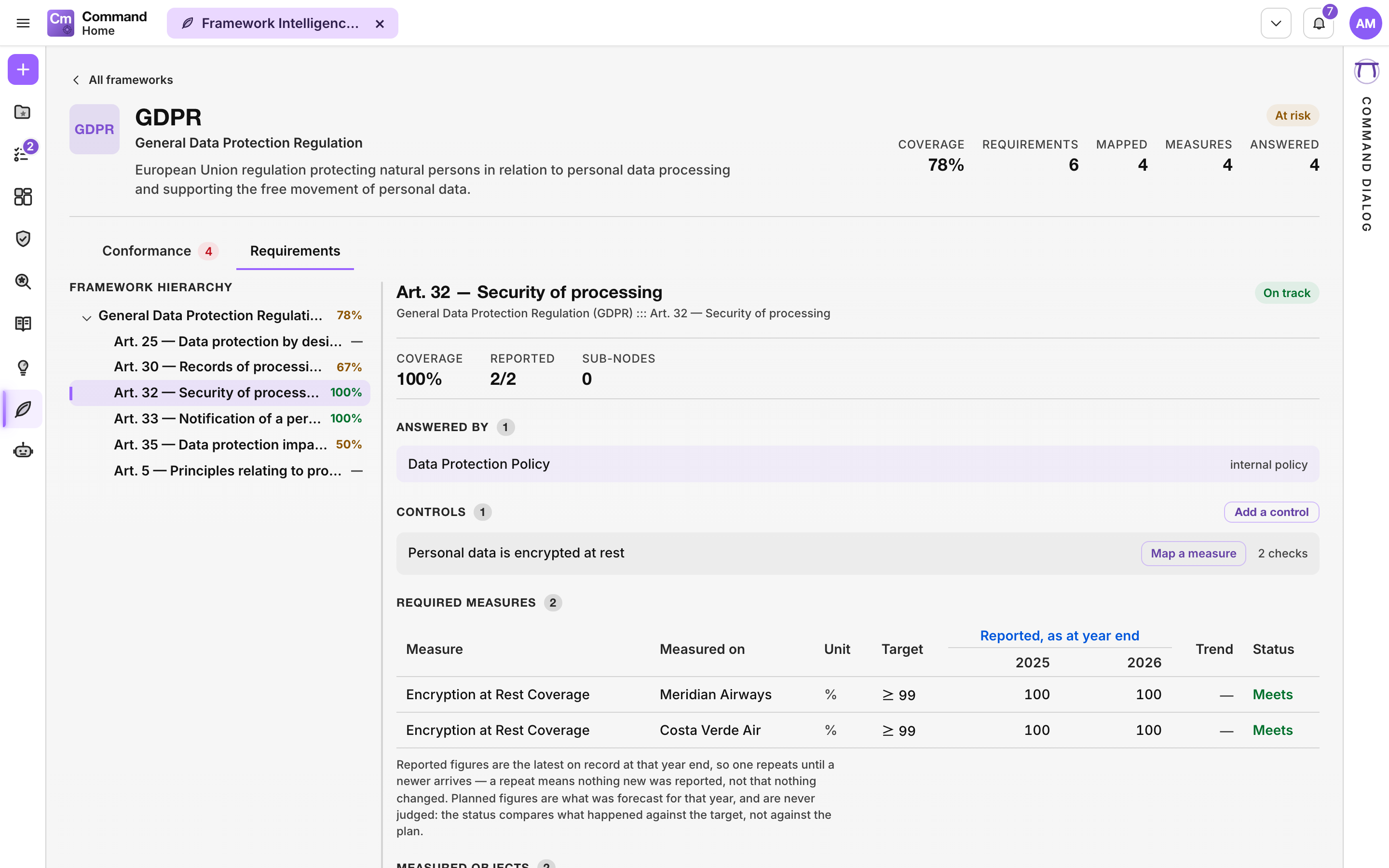
4. Read its **Controls**, the **Required measures** with their targets (for example "at most 900,000 kWh") and reported values, and the **Measured records**.
5. Click **All frameworks** to go back.
A **requirement** is what a framework or policy asks for. A **control** is something your organization does so the requirement holds. A **measure** is the number that shows the control works.
A requirement with its controls and required measures
### Read the evidence
The evidence window shows one of the four results: **Failing**, **On target**, **Reported** or **No data**. It explains the result in a sentence with its own numbers, for example "The latest value is 1,120,000 kWh. The target is at most 900,000 kWh, so this check is 220,000 kWh over the target." It names the measure, control and requirement, and shows **Over time** for recent years. The current year reads "so far". Inside a framework, click **Edit this mapping** to change it. From the Conformance landing, click **Open** to go to it in its framework. Click **Close** or press Escape to close it.
### Add your own policy
1. In **Frameworks**, click **Add a policy**.
2. Enter a **Name**.
3. Under **Clauses it answers**, search for each published requirement your policy covers and select it.
4. Click **Create policy**. Your policy opens on **What it answers**, which lists the clauses you linked. It also appears under **Our policies**.
## Good to know
* **No data** is an evidence gap, not a failure. Close it by reporting a value for the measure. See [Measures](https://docs.ins-pi.com/command/features/measures.md).
* Coverage counts only what is mapped. A framework with little mapped can look healthier than it is, so check **Mapped** next to **Coverage**.
* A requirement with nothing mapped to it directly, such as a framework's top level, summarizes what its sub-requirements hold. Select a sub-requirement to see its controls.
* A record you cannot open shows as **Record you cannot view**. When two records share a name, a serial number or asset tag tells them apart.
* **Ask the assistant** whether you are compliant, for example *Are we compliant with DORA?* or *What are our GDPR gaps?*. It answers from the frameworks loaded here: what is loaded, how many required checks report a value, the weakest areas and what is missing, with **Open in Framework Intelligence Center**. It shows control coverage; it is not legal advice or a compliance certificate.
* You can add a control with **Add a control** and link a measure to it with **Map a measure**, if you have rights to edit mappings.
{% hint style="info" %}
You see **Framework Intelligence Center** in the activity rail only if your persona includes it. See [Personas](https://docs.ins-pi.com/command/the-portal/personas.md).
{% endhint %}
## Related
* [Measures](https://docs.ins-pi.com/command/features/measures.md)
* [Data Governance](https://docs.ins-pi.com/command/features/data-governance.md)
* [AI Portfolio Management](https://docs.ins-pi.com/command/features/ai-portfolio-management.md)
---
# Agent Instructions
This documentation is published with GitBook. GitBook is the documentation platform designed so that both humans and AI agents can read, navigate, and reason over technical content effectively. Learn more at gitbook.com.
## Querying This Documentation
If you need additional information that is not directly available in this page, you can query the documentation by asking a question.
Perform an HTTP GET request on the following URL with the `ask` and `goal` query parameters:
```
GET https://docs.ins-pi.com/command/features/framework-intelligence-center.md?ask=&goal=
```
`ask` is the immediate question: it should be specific, self-contained, and written in natural language.
`goal` is what the user is ultimately trying to achieve, the reason they need the answer. Sharing it helps GitBook give you a better, more relevant answer. A goal is most helpful when it describes the outcome the user wants rather than restating the question. For example, with `ask=how do I create an API token`, a goal like `automate deployments from our CI pipeline` lets GitBook tailor the answer to that use case.
The response will contain a direct answer to the question and relevant excerpts and sources from the documentation.
Use this mechanism when the answer is not explicitly present in the current page, you need clarification or additional context, or you want to retrieve related documentation sections.