> For the complete documentation index, see [llms.txt](https://docs.ins-pi.com/llms.txt). Markdown versions of documentation pages are available by appending `.md` to page URLs; this page is available as [Markdown](https://docs.ins-pi.com/command/features/ideation-portal.md).
# Ideation Portal
Capture innovation ideas, rate them, and move them from draft through a decision in one shared board.
The Ideation Portal is where people capture ideas and where decision makers qualify and decide them. Every idea has an owner, a category, a short prioritisation and a status, so the pipeline from first thought to decision is visible to everyone. Ideas are ordinary records in your ServiceNow instance, so they can be used anywhere else in Command.
## What it is
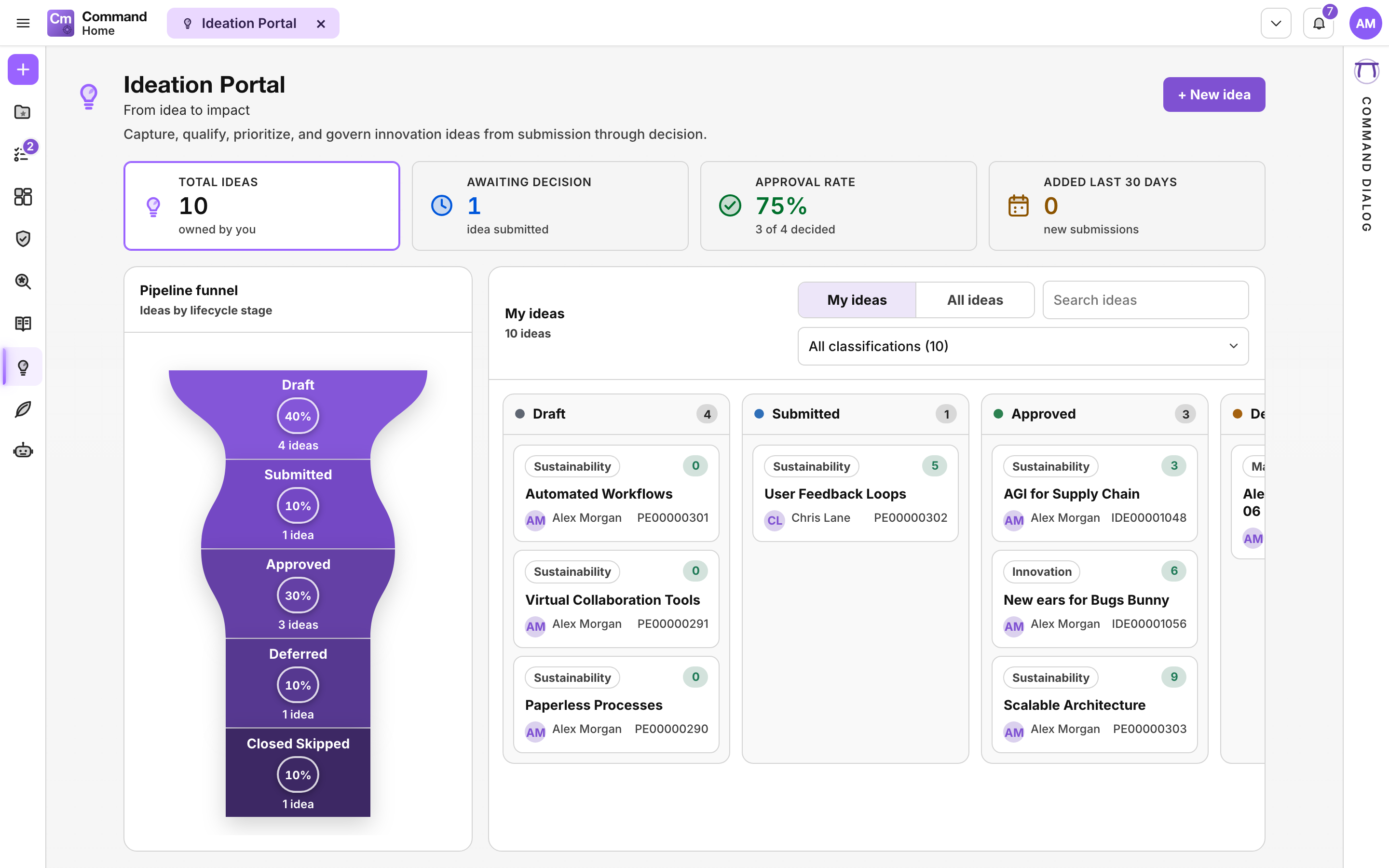
A full-page view with a summary strip, a pipeline funnel and a board of idea cards grouped by status.
The Ideation Portal
| Part | What it shows |
| ------------------- | ----------------------------------------------------------------------------------------------------------------------- |
| Header | **Ideation Portal**, the subtitle **From idea to impact**, and the **+ New idea** button. |
| Summary cards | **Total ideas**, **Awaiting decision**, **Approval rate** and **Added last 30 days**. |
| **Pipeline funnel** | **How many ideas are at each stage**: one band per status, with its count and its share of all ideas. |
| Board | One column per status. Each card shows the category, a quick priority number, the title, the owner and the idea number. |
An idea moves through these statuses:
| Status | Meaning |
| ------------- | --------------------------------------------------- |
| **Draft** | Saved but not yet submitted. Only a starting point. |
| **Submitted** | Waiting for a decision. |
| **Approved** | Accepted for delivery. |
| **Deferred** | Not now. It can be submitted again later. |
| **Delivered** | Done and delivered. |
| **Rejected** | Decided against. |
{% hint style="info" %}
Your instance stores the last two statuses as **Closed Complete** and **Closed Skipped**. You see those names in the Data Hub and in reports.
{% endhint %}
## When to use it
* You have an idea for a new capability, a saving or an improvement and want it recorded with an owner.
* You run an innovation or demand process and need to see what is waiting for a decision.
* You want to compare ideas on the same few priority dimensions before deciding.
## How to
### Open the portal
1. Click **Ideation Portal** in the activity rail. It opens as its own tab.
{% hint style="info" %}
The views in the activity rail depend on your persona. If you do not see **Ideation Portal**, ask your administrator. See [Personas](/command/the-portal/personas.md).
{% endhint %}
### Capture an idea
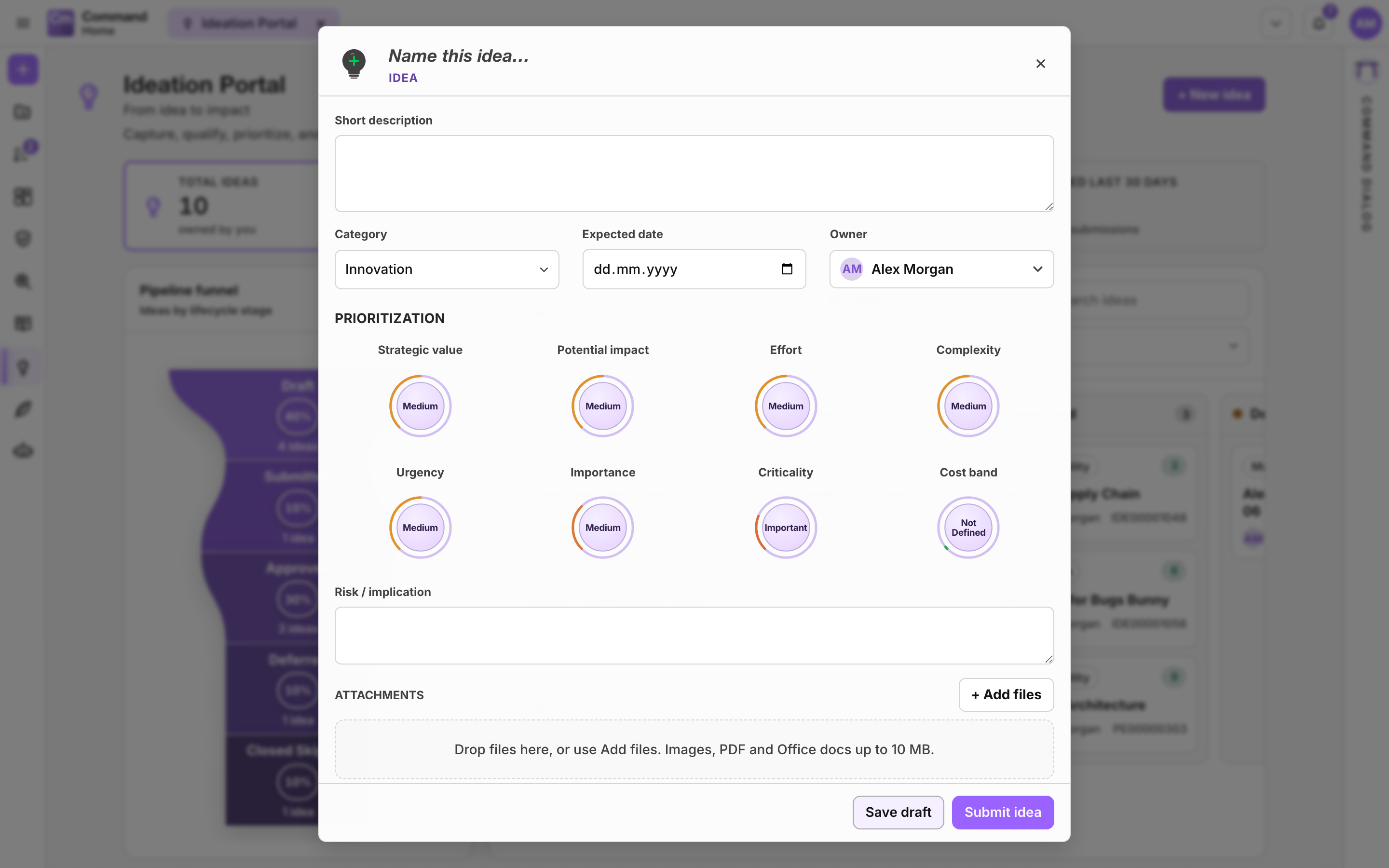
1. Click **+ New idea**.
2. Click **Name this idea…** at the top and type a name, then fill in the **Short description**. Both are required. If one is missing, the form tells you which and moves you to it.
3. Choose a **Category** and, if you know it, an **Expected date**. A new idea starts with no category.
4. Check the **Owner**. It defaults to you, and you can pick someone else. Type a name, then use the arrow keys or click to choose. The list shows active people only, not service or system accounts.
5. Under **Prioritization**, turn each dial, or focus it and use the arrow keys. Every dial starts at **Not rated**. Each dial has a short line under it saying what it asks (see the table below). An idea you leave unrated shows **Not rated yet** on its card.
6. Add any **Risks and side effects** and drop supporting files under **Attachments** (images, PDF and Office documents up to 10 MB).
7. Click **Save draft** to keep working on it later, or **Submit idea** to send it for a decision.
The New idea form
| Dial | What it asks |
| -------------------- | ---------------------------------------------------------------------- |
| **Strategic value** | How well it supports our goals. |
| **Potential impact** | How much difference it makes if it works. |
| **Effort** | How much work it takes. Less is better. |
| **Complexity** | How hard or risky it is to build. Less is better. |
| **Urgency** | How soon it needs to happen. |
| **Importance** | How much it matters to the people asking. |
| **Criticality** | How much the business depends on it. |
| **Cost band** | Rough total cost. Less is better. **Not rated** means no estimate yet. |
### Work on a draft
1. Open the draft from the **Draft** column.
2. Change what you need and click **Save changes**, or click **Submit idea** to send it for a decision.
3. To drop a draft you submitted, click **Withdraw**, add a reason if you like, and confirm. The draft moves to **Rejected** with the note "Withdrawn by submitter". Nothing is deleted. A withdrawn draft was never decided, so it does not count in the **Approval rate** and has no band in the **Pipeline funnel**.
### Decide an idea
1. Click **Awaiting decision** to highlight the **Submitted** column. Click it again to go back to every idea.
2. Open an idea card, with a click or with Tab and Enter.
3. Click **Approve**, **Defer** or **Reject**. **Reject** asks you to confirm and lets you add a reason, which is kept as a work note on the idea. The idea then moves to **Rejected**.
4. A deferred idea can be sent again with **Submit again**, or rejected.
5. When an approved idea is done, open it and click **Mark as delivered**. It moves to **Delivered**.
{% hint style="info" %}
You cannot approve, defer or reject an idea you submitted yourself. The buttons stay visible but are turned off, with the reason beside them, so someone else makes the decision.
{% endhint %}
### Find ideas
* Switch between **My ideas** (the default) and **All ideas**.
* Type in the search box (it matches the name, the description and the idea number), or pick a category from the category list. **Unclassified** shows the ideas with no category.
* Click **Added last 30 days** to show only recent ideas on the board and in the funnel. Drafts count as new ideas. Click it again to go back to every idea.
* **My ideas** shows the ideas you submitted, own or are assigned to.
## Good to know
* On the dials, colour runs from red to green. For **Effort**, **Complexity** and **Cost band** the scale is reversed, because more is worse.
* The number on a card is a quick priority out of 13: value and impact count double, urgency counts once, and effort and complexity are taken away. Point at it to see this. It is a quick ranking aid, not a formal assessment score. For a structured evaluation, use an [Idea Assessment](/command/getting-started/features.md) or the [Assessments](/command/features/assessments.md) view.
* Files you add while creating an idea are uploaded when you save or submit it.
* If the ideas cannot be loaded, the board says so and offers **Try again**. Press Escape to close an idea without saving.
* There is no voting or commenting on ideas today.
* Ideas are records, so you can also find them in the [Data Hub](/command/the-portal/data-hub.md) and place them on a roadmap or a map.
{% hint style="info" %}
Categories come from your instance, so your list may differ from the default one.
{% endhint %}
## Related
* [Assessments](/command/features/assessments.md)
* [Command Dialog](/command/features/command-dialog.md)
* [Content Types](/command/the-portal/content-types.md)
---
# Agent Instructions
This documentation is published with GitBook. GitBook is the documentation platform designed so that both humans and AI agents can read, navigate, and reason over technical content effectively. Learn more at gitbook.com.
## Querying This Documentation
If you need additional information that is not directly available in this page, you can query the documentation by asking a question.
Perform an HTTP GET request on the following URL with the `ask` and `goal` query parameters:
```
GET https://docs.ins-pi.com/command/features/ideation-portal.md?ask=&goal=
```
`ask` is the immediate question: it should be specific, self-contained, and written in natural language.
`goal` is what the user is ultimately trying to achieve, the reason they need the answer. Sharing it helps GitBook give you a better, more relevant answer. A goal is most helpful when it describes the outcome the user wants rather than restating the question. For example, with `ask=how do I create an API token`, a goal like `automate deployments from our CI pipeline` lets GitBook tailor the answer to that use case.
The response will contain a direct answer to the question and relevant excerpts and sources from the documentation.
Use this mechanism when the answer is not explicitly present in the current page, you need clarification or additional context, or you want to retrieve related documentation sections.