> For the complete documentation index, see [llms.txt](https://docs.ins-pi.com/llms.txt). Markdown versions of documentation pages are available by appending `.md` to page URLs; this page is available as [Markdown](https://docs.ins-pi.com/command/features/mobile-and-accessibility.md).
# Mobile & Accessibility
How Command behaves on phones and tablets, and how to use it with a keyboard, a screen reader, reduced motion, high contrast and your preferred theme.
Command is built for a desktop or laptop screen, and it adapts to tablets and phones so you can read, check and ask on the go. It can be used with a keyboard alone and with a screen reader, and it offers **Reduce motion**, **High contrast** and a choice of theme. This page describes what works today and where the limits are.
## What it is
Command adjusts its layout to the width of your screen.
| Screen width | Typical device | What changes |
| ---------------------- | --------------- | ------------------------------------------------------------------------------------------------------------------------------------------------------------------ |
| Wider than 1024 pixels | Desktop, laptop | The full layout: My Space or another left view, the content, and **Command Dialog** side by side. |
| 1024 pixels or less | Tablet | Only one side panel is open at a time. Opening My Space closes **Command Dialog**, and the other way round. Panels slide over the content instead of squeezing it. |
| 768 pixels or less | Phone | The phone layout described below. |
### On a phone
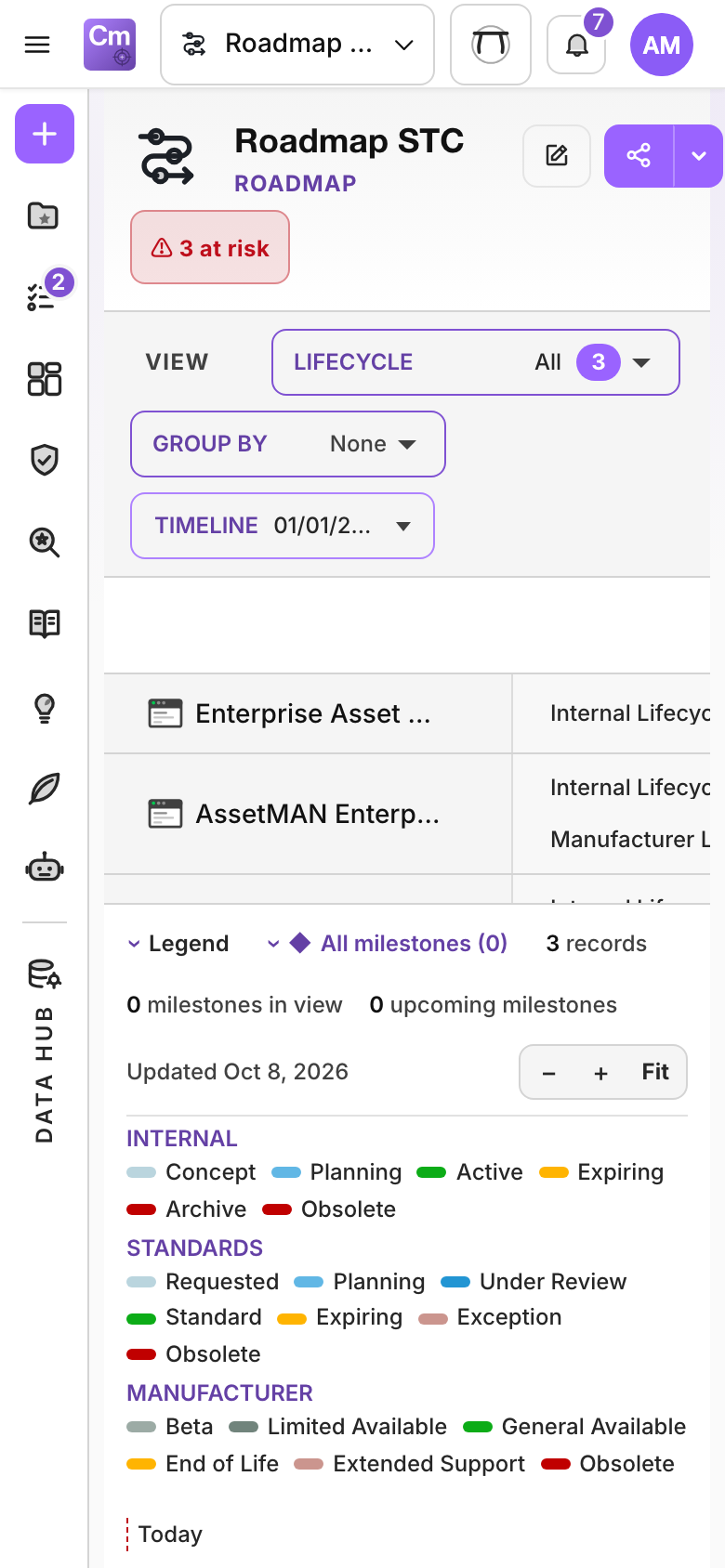
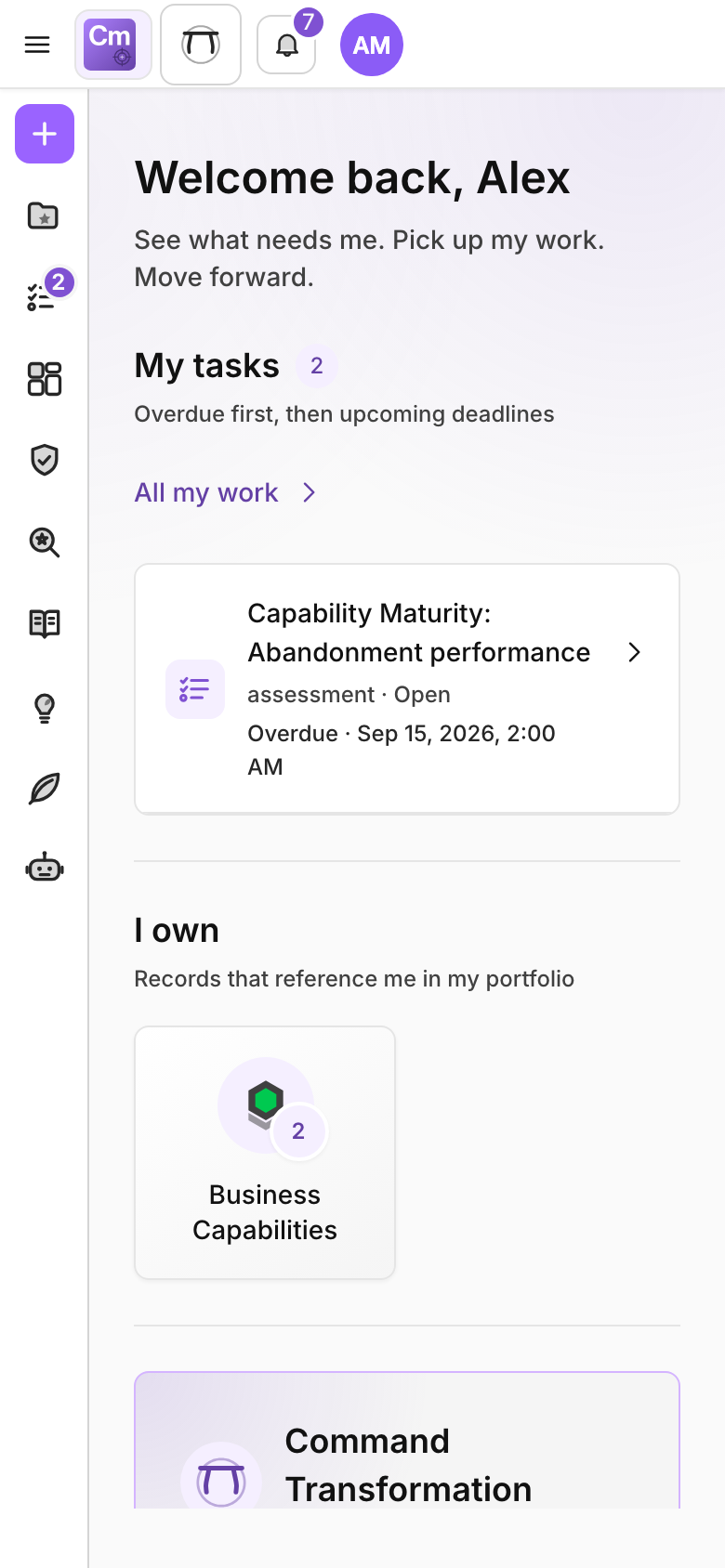
On a phone, the current tab is one button in the top bar
* **Panels fit the screen.** My Space, the other left views, **Command Dialog** and the Data Hub open beside the activity rail and fit the screen width. Their close buttons stay visible.
* **Nothing opens on its own.** Command starts with every panel closed, and switching tabs does not open the Data Hub. You open what you need.
* **Your desktop layout is kept.** Opening or closing panels on a phone does not change the layout you get next time on a desktop.
* **One tab button.** Instead of a strip of tab icons, the top bar shows one button with the current tab's icon, its title and a **▾**. Tap it to open tab search, which lists every open tab.
* **Command Dialog from the top bar.** Open the assistant from its button in the top bar.
* **Larger touch targets.** Buttons, chips and list rows are at least 44 pixels high, and row actions that appear on hover on a desktop are always visible on a touch screen.
My Space on a phone
The Command Dialog on a phone
## When to use it
* **On a phone or tablet:** read a dashboard or an Advisory Report, check and answer a task, ask **Command Dialog** a question, or look up a record.
Home on a phone
\* \*\*On a larger screen:\*\* build roadmaps, hierarchy maps and dashboards, which need room to drag and arrange. \* \*\*With assistive technology or preferences:\*\* whenever you work with a keyboard, a screen reader, reduced motion or higher contrast.
## How to
### Change the theme
1. Click the menu icon at the far left of the top bar (**Open menu**). **Settings** opens.
2. Under **Theme mode**, choose **Light**, **Dark** or **System**. **System** follows your device's light or dark setting.
When Command is embedded in another page, it follows that page's theme.
### Reduce motion or raise contrast
1. Open **Settings** as above.
2. Under **Accessibility**, switch on **Reduce motion** to stop animations and smooth scrolling.
3. Switch on **High contrast** for darker secondary text, stronger borders on cards, fields and dialogs, a deeper primary colour and a thicker (3 pixel) focus ring.
Command also follows the reduced-motion setting of your operating system, even when **Reduce motion** is off.
### Work with the keyboard
| Key | What it does |
| -------------------------------------------------------- | ---------------------------------------------------------------------------------------------------------------------------------------------------------------------------------------------------------------- |
| **Tab** on page load | Shows **Skip to main content**. Press **Enter** to jump past the header and rail. |
| **Ctrl+K** (Windows, Linux) or **Cmd+K** (Mac) | Opens tab search. Use the arrow keys to move, **Enter** to open, **Backspace** or **Delete** in an empty search box to close the highlighted tab. |
| **Left** / **Right**, **Home**, **End** on a tab | Move between tabs. **Enter** opens a tab, **Delete** closes it, and **Ctrl+Shift+Left/Right** moves it along the strip. |
| **Enter** / **Shift+Enter** in **Command Dialog** | Sends the message / adds a new line. |
| **Escape** in **Command Dialog** | Stops an answer that is still being written. When nothing is being written, closes the dialog and returns focus to the button that opened it. |
| Arrow keys in My Space | **Up** and **Down** move, **Right** and **Left** expand and collapse, **Home** and **End** jump to the first and last item. |
| **Enter** or **Space** in My Space | Opens the item or expands the folder. |
| **F2** / **Delete** in My Space | Renames / deletes the item. |
| **Alt+Up** / **Alt+Down** in My Space | Moves the item up or down in its folder. The item's menu also has **Move to…**, **Move up** and **Move down**. |
| Arrow keys on a resize handle | Resize the panel or splitter it controls. **Home** and **End** jump to the smallest and largest size. |
| **Alt+Arrow** on a grip in a content type | Moves the card, row, stage or scenario one place: Roadmap rows, SWOT cards, Journey stages and rows, Scenario Comparison columns, Measures and the form designer. Each grip also has a menu with the same moves. |
| **Shift+F10** or the context-menu key | Opens the item's menu. |
| Arrow keys, **Home**, **End** in a menu | Move between menu items. |
| **Escape** in a menu, popover or dialog | Closes it and returns focus to where you were. |
| **Ctrl+Enter** or **Cmd+Enter** in a title or edit field | Saves the edit. |
When you move with the keyboard, the focused control shows one focus ring. A text field shows it whenever you can type in it, also after a click; in a search box or the message box the ring goes round the whole box. A click on a button or tab shows no ring. Dialogs keep focus inside them until you close them.
Anything you can do by dragging can also be done without dragging:
* **Data Hub:** **Add all** adds a whole group to the open content.
* **Records in charts:** **Add to…** sends records to My Space from the Roadmap, Orbit, TIME Analysis, Radar, Scenario and Static List.
* **Dashboards:** **Configure widget** › **Position & size** places and sizes a widget. On a phone, **Move up** and **Move down** reorder widgets.
* **Maps:** in the Gravity Map and Dependency Map, the arrow keys move the selected magnet or node.
### Use a screen reader
* Answers in **Command Dialog** are announced as they arrive.
* The workbench tabs are a tab list (**Workbench tabs**), and My Space and Portfolio are trees, so their structure is announced.
* The activity rail is a navigation region named **Workspace views**. Its buttons say whether a view is open, and how many items are open.
* Icon-only buttons have names, for example **Open menu**, **Go to home page**, **Reset thread** and **Close panel**. Tabs are named by their title and record count, and close with **Delete**.
* Messages that appear briefly, such as "Saved", are announced. They pause while you point at or focus them, and any message with an action, such as **Undo**, stays until you close it.
* A closed Data Hub is hidden from screen readers and from the keyboard.
## Good to know
* There is no separate phone app. Command runs in the browser on any device that can reach your ServiceNow instance.
* Building and arranging content is easiest on a larger screen. A fuller phone layout, with bottom navigation, is planned.
* Text, buttons, focus rings and field borders meet the WCAG AA contrast levels in both themes and in **High contrast**.
* Your theme, accessibility switches, language, open tabs and layout are saved with your user and follow you to another browser.
{% hint style="info" %}
Version 26.1 was reviewed against WCAG 2.2 level AA on desktop and phone, in light and dark themes, and the issues found were fixed. A few limits remain: Journey Map cells are edited by double-clicking, Dependency Map node positions are not saved, and a whole Static List group can only be moved by dragging. This is not a formal conformance statement. If something does not work with your assistive technology, tell your administrator so it can be reported.
{% endhint %}
## Related
* [Command Dialog](/command/features/command-dialog.md)
* [The Portal](/command/the-portal/portal.md)
* [My Space and Sharing](/command/the-portal/my-space.md)
---
# Agent Instructions
This documentation is published with GitBook. GitBook is the documentation platform designed so that both humans and AI agents can read, navigate, and reason over technical content effectively. Learn more at gitbook.com.
## Querying This Documentation
If you need additional information that is not directly available in this page, you can query the documentation by asking a question.
Perform an HTTP GET request on the following URL with the `ask` and `goal` query parameters:
```
GET https://docs.ins-pi.com/command/features/mobile-and-accessibility.md?ask=&goal=
```
`ask` is the immediate question: it should be specific, self-contained, and written in natural language.
`goal` is what the user is ultimately trying to achieve, the reason they need the answer. Sharing it helps GitBook give you a better, more relevant answer. A goal is most helpful when it describes the outcome the user wants rather than restating the question. For example, with `ask=how do I create an API token`, a goal like `automate deployments from our CI pipeline` lets GitBook tailor the answer to that use case.
The response will contain a direct answer to the question and relevant excerpts and sources from the documentation.
Use this mechanism when the answer is not explicitly present in the current page, you need clarification or additional context, or you want to retrieve related documentation sections.