> For the complete documentation index, see [llms.txt](https://docs.ins-pi.com/llms.txt). Markdown versions of documentation pages are available by appending `.md` to page URLs; this page is available as [Markdown](https://docs.ins-pi.com/models/admin/migrator.md).

# Migrator

> The Migrator requires the **YouDesign Admin** (`x_inpi_yd.admin`) role.

The **Migrator** brings existing diagrams into YouDesign Models as boards. It reads diagrams made in **Designer** and files exported from other tools, maps their shapes to your shape libraries, and creates boards in the **Migrated Diagrams** folder. A readiness check tells you what will map cleanly before anything is created.

<figure><img src="https://2110136944-files.gitbook.io/~/files/v0/b/gitbook-x-prod.appspot.com/o/spaces%2FOS5XKTz5WlrX4s5rESlH%2Fuploads%2Fgit-blob-330efa71bd5c14393024e67a623d64f6d6feed71%2Fv26.1-migrator-sources.png?alt=media" alt=""><figcaption><p>Step 1 of the wizard: choose a source</p></figcaption></figure>

## Supported Sources

| Source                  | What you provide                                                                      | Notes                                                                                                                                                                                  |
| ----------------------- | ------------------------------------------------------------------------------------- | -------------------------------------------------------------------------------------------------------------------------------------------------------------------------------------- |
| **Designer diagrams**   | Nothing to upload. Requires a Designer Analyzer run in the instance.                  | Bulk migration of the Designer diagrams already stored in ServiceNow.                                                                                                                  |
| **Designer XML upload** | Designer diagram XML files from your computer.                                        | For diagrams exported from another instance.                                                                                                                                           |
| **BPMN XML upload**     | BPMN 2.0 XML files exported from other tools.                                         | Pools, lanes, sub-processes, boundary events and data associations are recognised, and shape, text and connector colours are kept. Several diagrams in one file become several frames. |
| **Visio upload**        | Microsoft Visio drawings (`.vsdx`).                                                   | Colours, connectors, containers, pools and lanes are preserved. Each Visio page becomes a frame.                                                                                       |
| **ArchiMate upload**    | ArchiMate Open Exchange Format XML (2.1 and 3.x) or a native Archi `.archimate` file. | Elements, relationships and views are mapped to the ArchiMate library.                                                                                                                 |

## Opening the Migrator

In the ServiceNow navigator, open **YouDesign Models > Configuration > Migrator**. The Migrator opens as its own page.

## The Wizard

The Migrator walks through five steps: **Source**, **Select**, **Configure**, **Readiness** and **Results**. **Back** returns to the previous step and **Start over** resets the wizard.

### 1. Source

Choose one of the source cards.

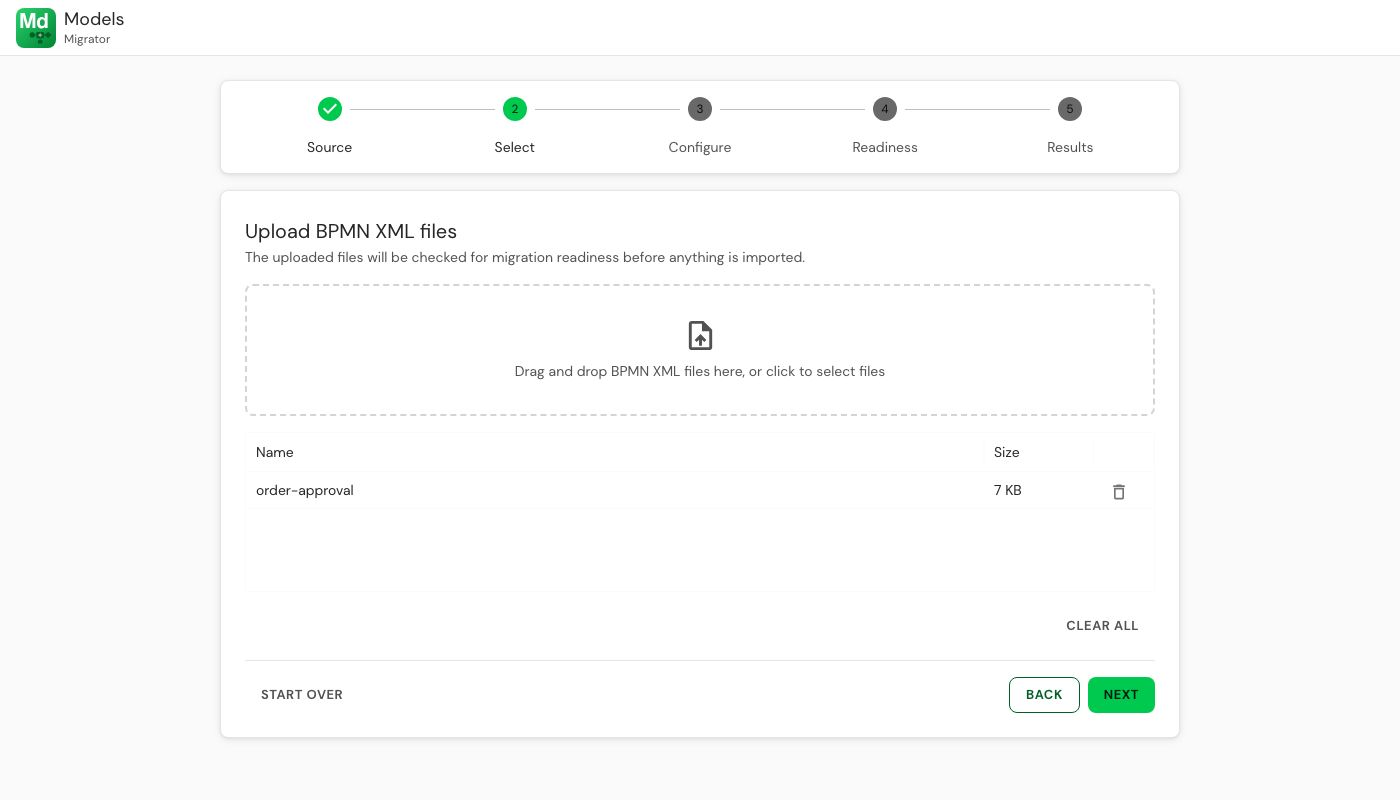
### 2. Select

For an upload source, drag files onto the drop zone or click it to pick files. The files are listed with their size; the bin icon removes one, **Clear all** removes them all. For a Designer source, the diagrams found in the instance are listed and you tick the ones to migrate.

<figure><img src="https://2110136944-files.gitbook.io/~/files/v0/b/gitbook-x-prod.appspot.com/o/spaces%2FOS5XKTz5WlrX4s5rESlH%2Fuploads%2Fgit-blob-a30f452be7c3d33671dc2141ecdabee1b8adf04e%2Fv26.1-migrator-select-upload.png?alt=media" alt=""><figcaption><p>A BPMN file ready for the readiness check</p></figcaption></figure>

### 3. Configure

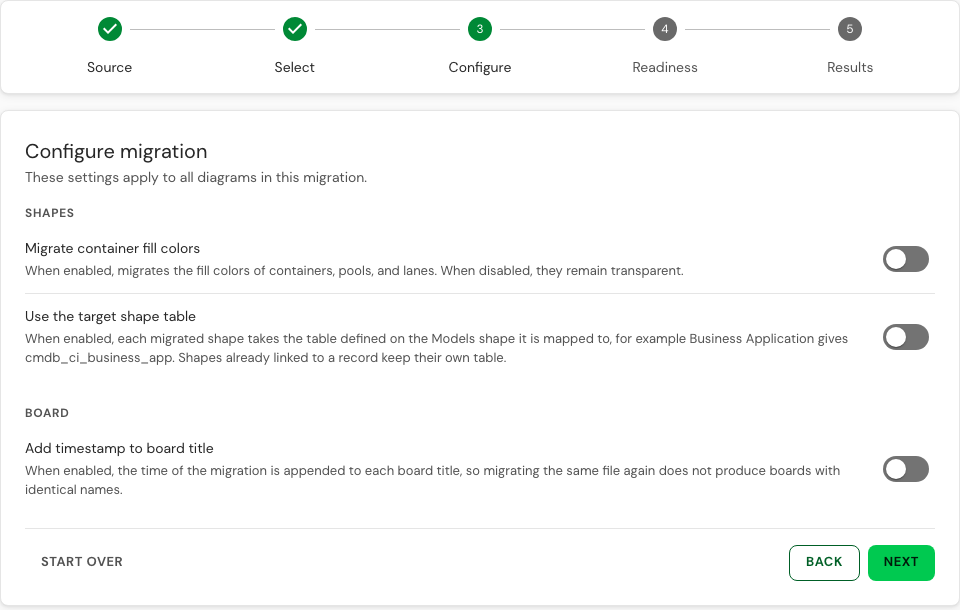
The settings apply to every diagram in the run. Which groups you see depends on the source.

| Group        | Setting                           | Effect                                                                                                                                                                                                  |
| ------------ | --------------------------------- | ------------------------------------------------------------------------------------------------------------------------------------------------------------------------------------------------------- |
| **Designer** | **Relationship fields table**     | The table used to resolve relationship fields. Designer sources only.                                                                                                                                   |
| **Designer** | **Folder structure**              | **First folder as Teamspace** turns the top Designer folder into the teamspace, **New Teamspace** creates one. Designer sources only.                                                                   |
| **Shapes**   | **Migrate container fill colors** | Keep the fill colour of pools, lanes and other containers from the source. Off by default, so containers stay transparent.                                                                              |
| **Shapes**   | **Use the target shape table**    | Each migrated shape takes the table defined on the Models shape it is mapped to, for example Business Application gives `cmdb_ci_business_app`. Shapes already linked to a record keep their own table. |
| **Board**    | **Add timestamp to board title**  | Append the migration time to each board name, so migrating the same file again does not produce boards with identical names. Upload sources only.                                                       |

The Migrator remembers these settings in your browser, so they are still set after **Start over** or a change of source.

<figure><img src="https://2110136944-files.gitbook.io/~/files/v0/b/gitbook-x-prod.appspot.com/o/spaces%2FOS5XKTz5WlrX4s5rESlH%2Fuploads%2Fgit-blob-fbe3b8853e4b04297018c36cdecf3ce6bfb31447%2Fv26.1-migrator-configure.png?alt=media" alt=""><figcaption><p>Configure step for a BPMN upload</p></figcaption></figure>

### 4. Readiness

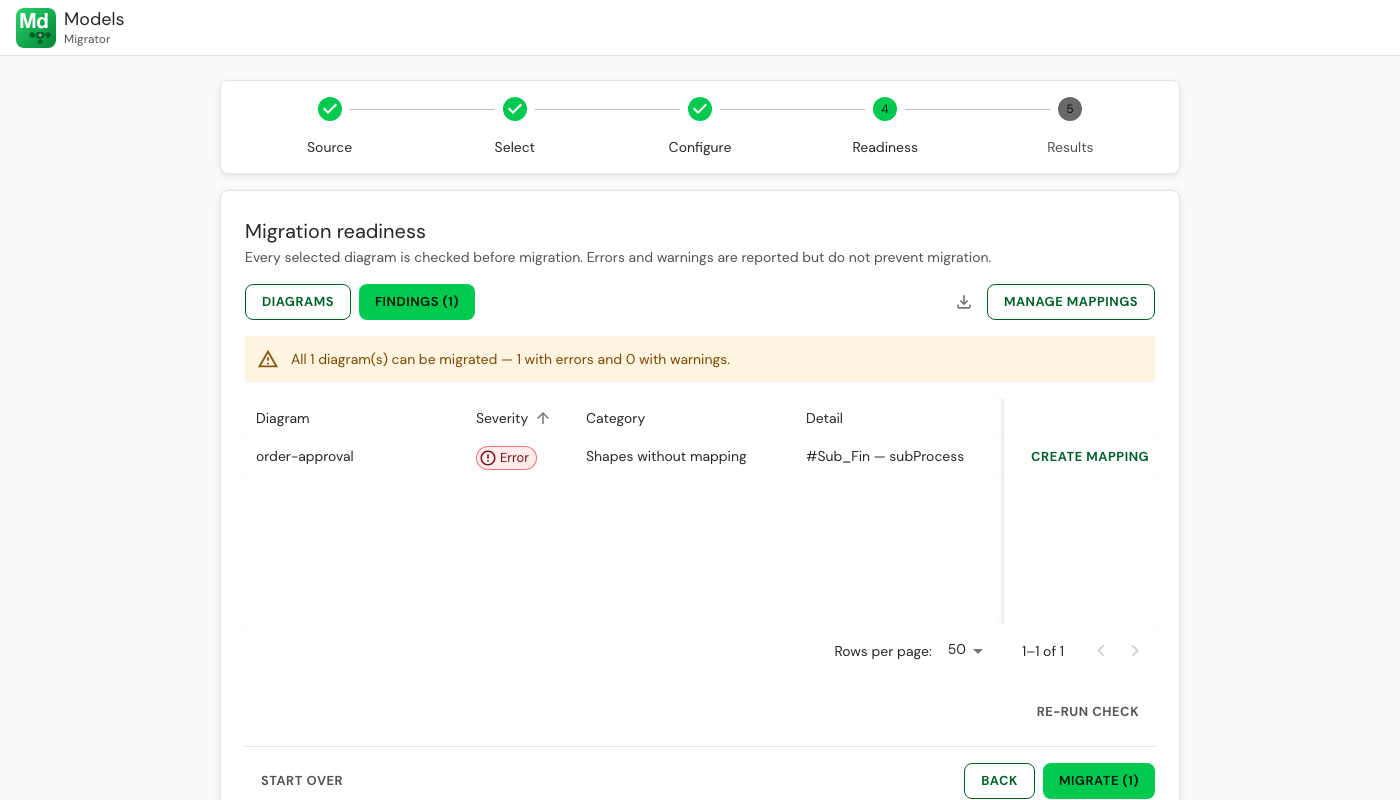
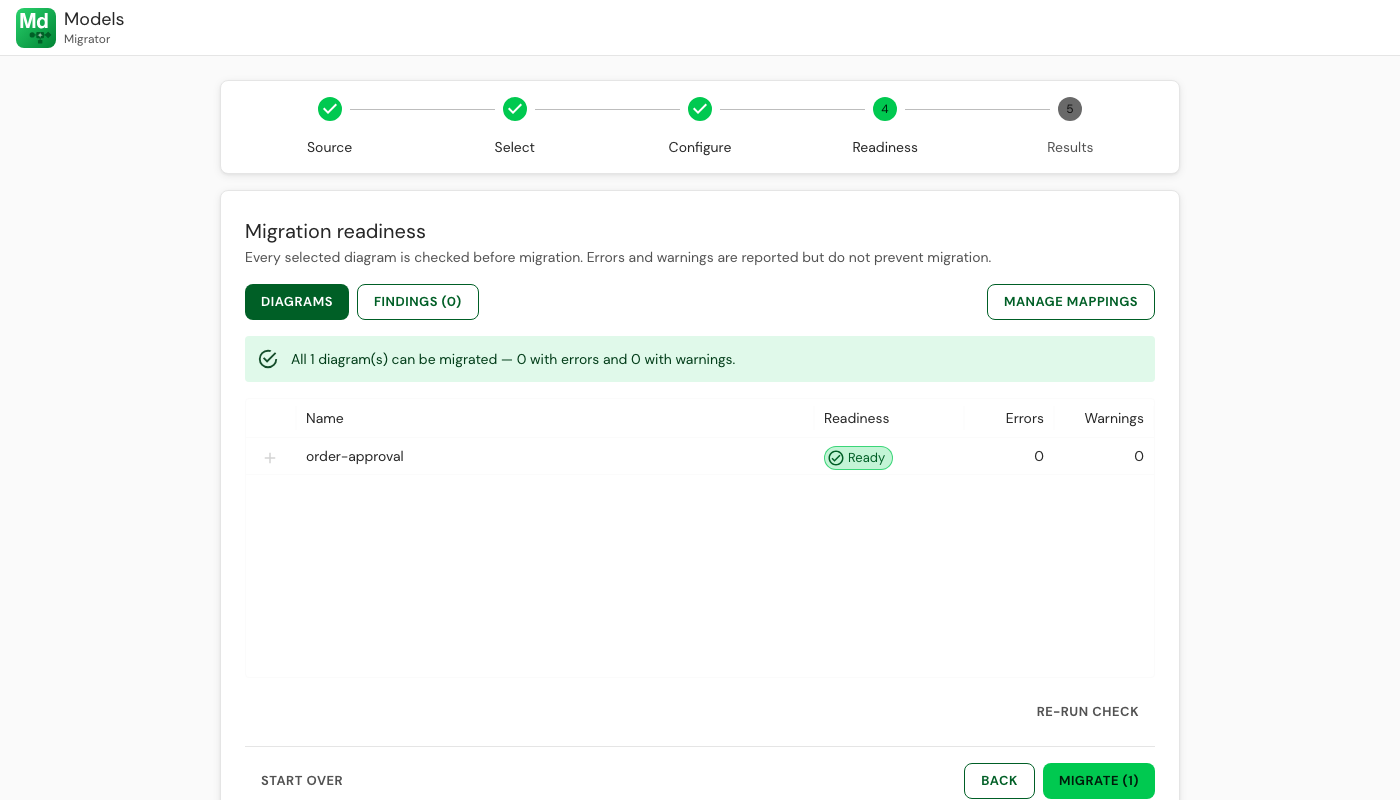
Every selected diagram is analysed. The summary line tells you how many diagrams can be migrated and how many carry errors or warnings. Findings are reported but **do not block** the migration; a shape without a mapping simply arrives as a plain shape with its label.

The step has three tabs:

* **Diagrams** — one row per diagram with its readiness and its error and warning counts. Expand a row for the details.
* **Findings** — one row per problem: diagram, severity, category (for example "Shapes without mapping"), the shape's text and its **source key**. Each row has a **Create mapping** button.
* **Manage mappings** — the full mapping table for the source application, with search.

<figure><img src="https://2110136944-files.gitbook.io/~/files/v0/b/gitbook-x-prod.appspot.com/o/spaces%2FOS5XKTz5WlrX4s5rESlH%2Fuploads%2Fgit-blob-f0777d775ada75aa6ad22961bea9eec1256aa2a8%2Fv26.1-migrator-findings.png?alt=media" alt=""><figcaption><p>A finding: the source shape type has no mapping yet</p></figcaption></figure>

#### Creating a mapping

**Create mapping** opens a dialog pre-filled with the source key of the finding:

| Field                   | Meaning                                                                                                                                                                                                         |
| ----------------------- | --------------------------------------------------------------------------------------------------------------------------------------------------------------------------------------------------------------- |
| **Application**         | The source tool the mapping belongs to (BPMN, Visio, Designer, ArchiMate).                                                                                                                                      |
| **Type**                | **Shape** to map to a Models shape, or **Text** to map to a fixed text value.                                                                                                                                   |
| **Source key**          | The shape type as the source tool names it, for example `subProcess`. Tick **Source from Shapes** to pick from known keys instead of typing.                                                                    |
| **Target shape**        | The Models shape to use. Tick **Target from Shapes** to search all active shapes by name or library folder, for example `BPMN › Activity › Sub Process`. A preview of the chosen shape appears under the field. |
| **Active**              | Inactive mappings are kept but ignored.                                                                                                                                                                         |
| **Provisional mapping** | Marks a mapping you want to revisit; it migrates like any other and is flagged in the mapping table.                                                                                                            |

When several findings are open, **Previous** and **Next** step through them without closing the dialog. After saving, click **Re-run check**; the finding disappears once the mapping covers it. Mappings are saved in the instance and reused by every later migration.

<figure><img src="https://2110136944-files.gitbook.io/~/files/v0/b/gitbook-x-prod.appspot.com/o/spaces%2FOS5XKTz5WlrX4s5rESlH%2Fuploads%2Fgit-blob-852679d75d3538ce213ddc50c48594d0f4f62092%2Fv26.1-migrator-create-mapping.png?alt=media" alt=""><figcaption><p>A BPMN mapping with the target shape preview</p></figcaption></figure>

<figure><img src="https://2110136944-files.gitbook.io/~/files/v0/b/gitbook-x-prod.appspot.com/o/spaces%2FOS5XKTz5WlrX4s5rESlH%2Fuploads%2Fgit-blob-73094cc1d82d305b15686175cbdeb26ff265a7a5%2Fv26.1-migrator-readiness.png?alt=media" alt=""><figcaption><p>A clean readiness check</p></figcaption></figure>

Click **Migrate (n)** to create the boards.

### 5. Results

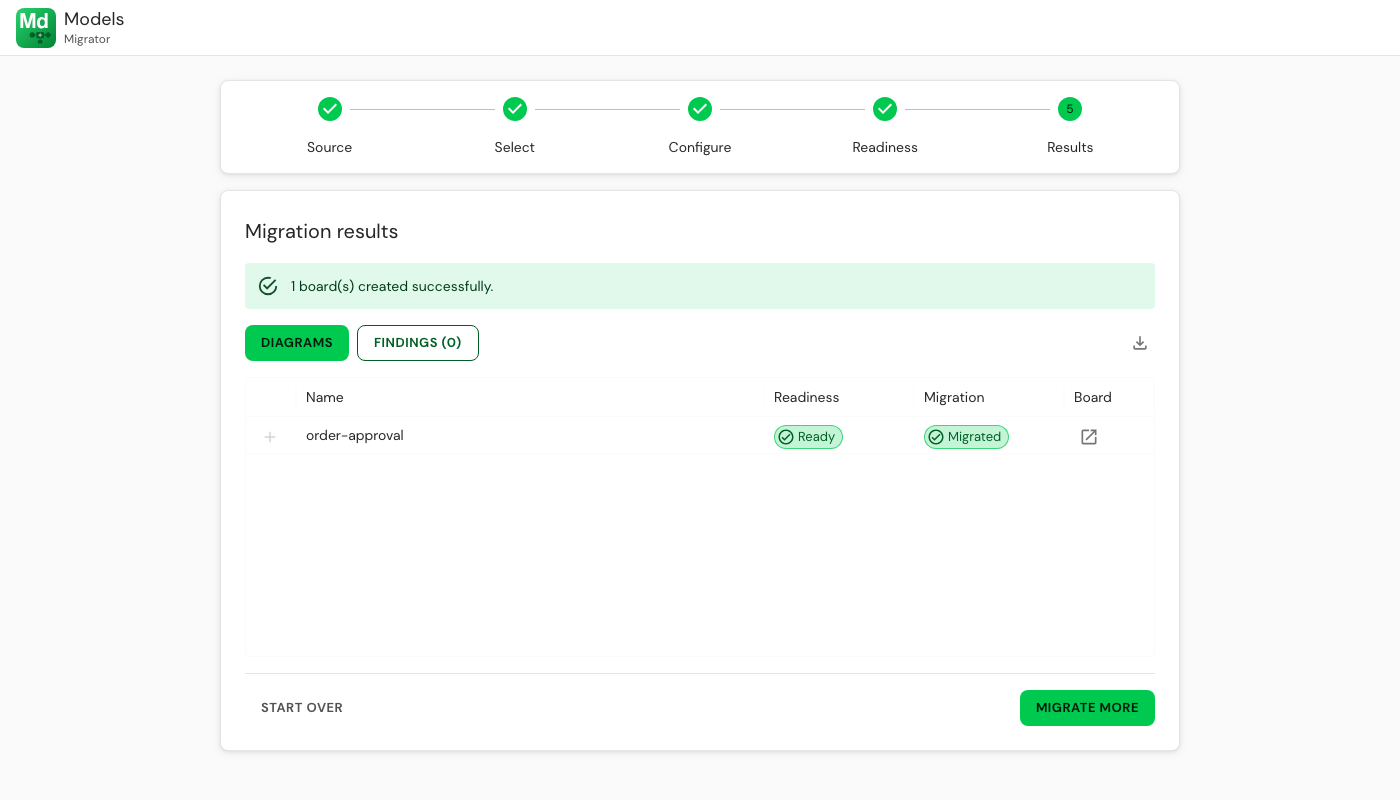
Each diagram is listed with its readiness and migration badges and an **open board** icon that opens the new board in the editor. The download icon exports the results table. **Migrate more** starts a new run with the same source.

<figure><img src="https://2110136944-files.gitbook.io/~/files/v0/b/gitbook-x-prod.appspot.com/o/spaces%2FOS5XKTz5WlrX4s5rESlH%2Fuploads%2Fgit-blob-389e2ba7c8131e547c634bd7b1e583f42594704d%2Fv26.1-migrator-results.png?alt=media" alt=""><figcaption><p>Results step</p></figcaption></figure>

<figure><img src="https://2110136944-files.gitbook.io/~/files/v0/b/gitbook-x-prod.appspot.com/o/spaces%2FOS5XKTz5WlrX4s5rESlH%2Fuploads%2Fgit-blob-533ab9438cd05923f3d845757369bab3e0a82966%2Fv26.1-migrator-bpmn-result.png?alt=media" alt=""><figcaption><p>The migrated BPMN diagram: pool, lanes, gateway with labelled flows and an expanded sub-process</p></figcaption></figure>

## The Designer Workbench

Choosing **Designer diagrams** opens the **workbench** instead of the step-by-step wizard. It keeps the diagram list, findings and results in one persistent view for large migrations.

<figure><img src="https://2110136944-files.gitbook.io/~/files/v0/b/gitbook-x-prod.appspot.com/o/spaces%2FOS5XKTz5WlrX4s5rESlH%2Fuploads%2Fgit-blob-1442b171fc553dabc9685668612d38709b55cf69%2Fv26.1-migrator-workbench.png?alt=media" alt=""><figcaption><p>The Designer workbench with its settings open</p></figcaption></figure>

* **Settings** at the top hold the same options as the Configure step, plus **Content to migrate** when every analysed diagram has its Designer image: **Image and elements** rebuilds the diagram, **Image only** places the picture. Click the header to collapse the settings to a one-line summary of the current values and give the diagram list more room.
* Tick diagrams and click **Check selected** to run the readiness check, then **Migrate / update** to create or refresh their boards.
* **Findings** shows the problems of the selected diagrams only, so you can work through one folder at a time. **Repair mappings** steps through the mappings the findings point at; **All mappings** opens the mapping manager.
* **Open board** opens the migrated board, **Compare** shows the Designer diagram and its board side by side, and the download icon exports the results summary.

<figure><img src="https://2110136944-files.gitbook.io/~/files/v0/b/gitbook-x-prod.appspot.com/o/spaces%2FOS5XKTz5WlrX4s5rESlH%2Fuploads%2Fgit-blob-8e19f6b8985f8d15e3d4f46d87a34191faefac7b%2Fv26.1-migrator-workbench-collapsed.png?alt=media" alt=""><figcaption><p>Collapsed settings show the current values in one line</p></figcaption></figure>

## Good to Know

* Migrated boards are ordinary boards in the **Migrated Diagrams** folder. Move them to their teamspace afterwards; versioning, sharing and export work as usual.
* Run the readiness check on a handful of diagrams first to build the mapping table before migrating a whole folder.

## Related

* [Shape Administration](/models/admin/shapes.md) — the shape libraries mappings point at
* [Moving Boards Between Teamspaces](/models/admin/moving-boards.md) — relocating boards after migration
* [BPMN Shapes & Swimlanes](/models/bpm-process/bpmn-shapes.md) — what imported BPMN diagrams look like


---

# Agent Instructions
This documentation is published with GitBook. GitBook is the documentation platform designed so that both humans and AI agents can read, navigate, and reason over technical content effectively. Learn more at gitbook.com.

## Querying This Documentation
If you need additional information that is not directly available in this page, you can query the documentation by asking a question.

Perform an HTTP GET request on the following URL with the `ask` and `goal` query parameters:

```
GET https://docs.ins-pi.com/models/admin/migrator.md?ask=<question>&goal=<user_goal>
```

`ask` is the immediate question: it should be specific, self-contained, and written in natural language.
`goal` is what the user is ultimately trying to achieve, the reason they need the answer. Sharing it helps GitBook give you a better, more relevant answer. A goal is most helpful when it describes the outcome the user wants rather than restating the question. For example, with `ask=how do I create an API token`, a goal like `automate deployments from our CI pipeline` lets GitBook tailor the answer to that use case.

The response will contain a direct answer to the question and relevant excerpts and sources from the documentation.

Use this mechanism when the answer is not explicitly present in the current page, you need clarification or additional context, or you want to retrieve related documentation sections.