> For the complete documentation index, see [llms.txt](https://docs.ins-pi.com/llms.txt). Markdown versions of documentation pages are available by appending `.md` to page URLs; this page is available as [Markdown](https://docs.ins-pi.com/models/reference/accessibility.md).

# Accessibility

YouDesign Models is built to be used by everyone, including people who work without a mouse, with a screen reader, at high zoom or with a limited colour palette. Every part of the application, including the diagram canvas, can be operated from the keyboard and is announced by assistive technology.

This page explains how to get around the application and the canvas with a keyboard or a screen reader, which display settings are available, and how to build boards that stay accessible for the people you share them with.

## Standards and Commitment

* The application is built and tested against **WCAG 2.2 AA**: keyboard operability, visible focus, accessible names and roles, text and non-text contrast of at least 4.5:1 and 3:1, reflow at 400% zoom, and support for forced-colour modes.
* Accessibility is part of how features are built: each interactive component ships with automated accessibility tests that run in a real browser, and whole-page scans run against the live application.
* Each release also gets a manual screen-reader pass with VoiceOver on macOS and NVDA on Windows, in addition to the automated checks.
* We keep improving. If something does not work with your assistive technology, tell us through the [Support Process](/models/reference/support.md) and describe the browser, the screen reader and the steps.

## Supported Browsers and Assistive Technology

| Type               | Tested with                                                                                                              |
| ------------------ | ------------------------------------------------------------------------------------------------------------------------ |
| **Browsers**       | Chrome, Edge, Firefox, Safari (current versions)                                                                         |
| **Screen readers** | VoiceOver on macOS, NVDA on Windows                                                                                      |
| **Display modes**  | Windows High Contrast, Firefox "override page colours", browser zoom up to 400%, operating-system reduced-motion setting |

Other combinations may work but are not part of our regular testing.

## Getting Around the Interface

The application follows standard web conventions, so a screen reader's usual reading and navigation commands work as expected.

* **Tab** and **Shift+Tab** move between controls in a sensible order: board bar, drawing tools, canvas, widget bar and panels.
* **Skip links** at the start of each page jump straight to the main region: *Skip to the diagram*, *Skip to the drawing tools*, *Skip to the widget bar*, *Skip to the minimap*, and *Skip to the main content* on the Home page.
* **Arrow keys** move within toolbars, menus, lists, grids and trees, which are each a single Tab stop. Grids such as the Explorer and the Layers panel take one Tab to enter and one to leave.
* **Enter** or **Space** activates the focused control. **Esc** closes one level at a time: a colour popover first, then its toolbar, then the panel.
* **Dialogs** take focus when they open and give it back to the control that opened them when they close. Every dialog has a close button and can be dismissed with **Esc**.
* A **visible focus ring** is shown on every focusable element, including elements on the canvas.

## Keyboard Navigation on the Canvas

The canvas is a drawing surface, not a list of controls, so it has two keyboard modes. A message tells you which mode you are in each time you switch, and the switch is announced to screen readers.

| Mode                   | What the arrow keys do                                                                                                |
| ---------------------- | --------------------------------------------------------------------------------------------------------------------- |
| **Panning** (default)  | Scroll the view. **Shift + arrows** scrolls faster. With a shape selected, the arrows **nudge** it instead.           |
| **Element navigation** | Move a **focus ring** from element to element, so you can reach any shape, relationship or container without a mouse. |

Press **Ctrl + Alt + Enter** (Windows) or **Cmd + Option + Enter** (Mac) on the canvas to switch modes. The shortcut is also shown in the Accessibility section of the settings drawer.

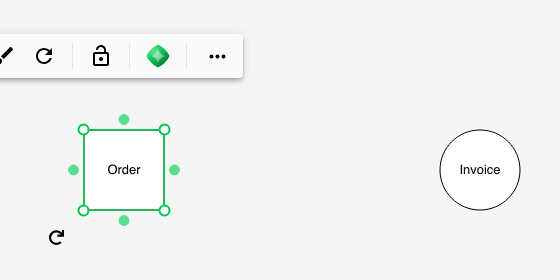
<figure><img src="https://2110136944-files.gitbook.io/~/files/v0/b/gitbook-x-prod.appspot.com/o/spaces%2FOS5XKTz5WlrX4s5rESlH%2Fuploads%2Fgit-blob-4939024ee43cf893288bf96dfecb7a1deed6f856%2Fv26.1-canvas-keyboard-focus.png?alt=media" alt=""><figcaption><p>Element navigation mode: the focused shape shows its handles and its context toolbar</p></figcaption></figure>

### Moving focus between elements

| Action                                                                                      | Windows / Linux  | macOS           |
| ------------------------------------------------------------------------------------------- | ---------------- | --------------- |
| Move focus to the next element in that direction                                            | `← ↑ ↓ →`        | `← ↑ ↓ →`       |
| Move focus to a connected relationship, or from a relationship to the node at its end       | `Ctrl + ← ↑ ↓ →` | `Cmd + ← ↑ ↓ →` |
| Enter a group, frame or visualization to navigate its members; activate the focused element | `Enter`          | `Enter`         |
| Leave the group and return to its parent                                                    | `Esc`            | `Esc`           |
| Activate the focused element (open, expand, edit)                                           | `Ctrl + Enter`   | `Cmd + Enter`   |

As focus moves, the screen reader reads the element's type and name, for example *Shape: Order*, *Data Hub record: SAP HR*, *Relationship*, *Frame: Finance*. Connection points and the expand or collapse control of a container are announced with their side and state when you reach them.

### Selecting

| Action                              | Windows / Linux    | macOS             |
| ----------------------------------- | ------------------ | ----------------- |
| Select the focused element          | `Space`            | `Space`           |
| Add or remove it from the selection | `Ctrl + Space`     | `Cmd + Space`     |
| Add it to the selection             | `Shift + Space`    | `Shift + Space`   |
| Select all / select none            | `Ctrl + A` / `Esc` | `Cmd + A` / `Esc` |

Once an element is selected, its **context toolbar** appears and is reachable with **Tab**. Everything the toolbar offers (style, arrowheads, layout, lock, more actions) works with the arrow keys and Enter, and pressing **Delete** or **Backspace** while a toolbar button has focus still deletes the selection.

### Editing with the keyboard

| Action                                          | Windows / Linux                                                                        | macOS         |
| ----------------------------------------------- | -------------------------------------------------------------------------------------- | ------------- |
| Rename or edit the text of the selected element | `F2`                                                                                   | `F2`          |
| Confirm the text you typed                      | `Ctrl + Enter`                                                                         | `Cmd + Enter` |
| Move the selection a small step / a large step  | `← ↑ ↓ →` / `Shift + ← ↑ ↓ →`                                                          | same          |
| Cut, copy, paste, duplicate, undo, redo         | the usual shortcuts, see [Keyboard Shortcuts](/models/reference/keyboard-shortcuts.md) |               |
| Bring the selection into view                   | `Space` (tap) in panning mode                                                          | `Space` (tap) |

Rotation, alignment and distribution are on the context toolbar. Anything that normally needs a mouse, such as starting a relationship from a connection point, is done with the **virtual pointer** below.

### The virtual pointer

Some canvas actions are only possible with a pointer: drawing a relationship from a connection point, resizing with a handle, dropping onto a precise spot. The virtual pointer lets you do these from the keyboard while in element navigation mode.

| Action                     | Windows / Linux          | macOS                   |
| -------------------------- | ------------------------ | ----------------------- |
| Show the pointer           | hold `Shift`             | hold `Shift`            |
| Move it in large steps     | `Shift + ← ↑ ↓ →`        | `Shift + ← ↑ ↓ →`       |
| Move it in small steps     | `Ctrl + Shift + ← ↑ ↓ →` | `Cmd + Shift + ← ↑ ↓ →` |
| Click where the pointer is | `Shift + Enter`          | `Shift + Enter`         |

The pointer appears next to the focused element as a crosshair. Move it onto the control you need, for example a connection point or a resize handle, and press **Shift + Enter** to click there. The connection point highlights when the pointer is over it.

To connect two shapes:

1. Focus the source shape and hold **Shift**. Move the pointer onto one of its connection points (the dot on its edge highlights).
2. Press **Shift + Enter**. The relationship starts; the screen reader says *Drawing a relationship from Shape: Order*.
3. Keep **Shift** held and move the pointer onto the target shape. As it arrives you hear *Over Shape: Invoice*.
4. Press **Shift + Enter** again. The relationship is created and announced: *Relationship created from Shape: Order to Shape: Invoice*.

<figure><img src="https://2110136944-files.gitbook.io/~/files/v0/b/gitbook-x-prod.appspot.com/o/spaces%2FOS5XKTz5WlrX4s5rESlH%2Fuploads%2Fgit-blob-c10726ec62304296aaf73fc58701abce053daf28%2Fv26.1-canvas-virtual-pointer-linking.png?alt=media" alt=""><figcaption><p>Step 3: the relationship follows the virtual pointer towards the target shape</p></figcaption></figure>

<figure><img src="https://2110136944-files.gitbook.io/~/files/v0/b/gitbook-x-prod.appspot.com/o/spaces%2FOS5XKTz5WlrX4s5rESlH%2Fuploads%2Fgit-blob-d85e509492284393522bd5af5b19569a6b3347c4%2Fv26.1-canvas-virtual-pointer.png?alt=media" alt=""><figcaption><p>The virtual pointer (crosshair) next to the focused shape while Shift is held</p></figcaption></figure>

### Data Hub and panels

* In the Data Hub tree, **Alt + Enter** (Windows) or **Option + Enter** (Mac) inserts the focused record on its own, without its child records.
* Panels such as Layers, Realtime Indicators and the Explorer are grids or trees: one Tab stop, arrow keys inside, **Enter** or **Space** on a row to act on it. Row actions are announced with their result, for example *Finance, Hidden* when a layer is hidden.

## Screen Readers

Everything that changes on the canvas is announced through a live region, so you do not have to hunt for the result of a command:

* **Selection and focus**: type and name of the element, its future-state marker when the Future State Indicator is on, and the values of any Realtime Indicators shown on it (*Maturity: Defined*).
* **Edits**: moved (with the new position), resized, rotated, renamed, cut, copied, pasted, deleted, brought to front, sent to back, moved to a layer, styles reset, text clipped or overflowing.
* **Relationships**: created (with both ends), endpoint moved, reshaped, direction flipped.
* **Containers**: expanded, collapsed, entered, left.
* **Application**: panels opened, zoom level, minimap shown or hidden, undo and redo with the action name, toasts and notifications.

Dialogs, menus, tabs, switches and toggle buttons expose their role and state (*pressed*, *expanded*, *checked*), so their state is read without extra commands. Decorative icons are hidden from the reader; every control has a text name, localized to the interface language.

Board Search is a good way to reach a specific element on a large board without walking the canvas: press **Ctrl+F** / **Cmd+F**, type, and **Enter** selects and announces each result in turn. See [Search](/models/work-in-the-app/editor/search.md).

## Zoom, Contrast and Motion

* **Zoom**: the interface reflows at browser zoom up to 400%. Menus, dropdowns and panels fit the space available instead of running off screen, and the browser's minimum font size is respected.
* **Contrast**: text meets 4.5:1 and controls, icons and focus indicators meet 3:1 against their real background, including disabled states.
* **Forced colours**: under Windows High Contrast and Firefox's colour override, selection, focus, hover and disabled states are drawn with the system colours, so nothing that was only a background or a shadow disappears.
* **Reduced motion**: when your operating system asks for reduced motion, animations and transitions are turned off. You can also force this in the settings below.

## Personal Accessibility Settings

Open the settings drawer (the ☰ menu in the editor, or the settings icon on the Home page) and expand **Accessibility**. The settings are saved to your user preferences and apply on every board.

| Setting                               | Default | What it does                                                                                                                                     |
| ------------------------------------- | ------- | ------------------------------------------------------------------------------------------------------------------------------------------------ |
| **Precise selection**                 | On      | Enlarges the click target around elements so small or overlapping shapes are easier to select. Turn off if clicks pick up neighbouring elements. |
| **Reduce motion**                     | Off     | Disables animations and transitions across the interface. The canvas snaps instead of animating.                                                 |
| **High contrast**                     | Off     | Uses a pure white canvas background and stronger UI contrast for better figure and ground separation.                                            |
| **Keyboard navigation on the canvas** |         | Reminds you of the shortcut that switches the canvas between panning and element navigation.                                                     |

These settings are personal and do not export with the board.

## Making Your Boards Accessible for Others

The application gives your readers accessible controls, but what they hear and see depends on how the board is built.

* **Name things.** A shape reads as *Shape: Order*; an unnamed one reads as *Shape*. Give shapes, frames, lanes and relationships a text label. Unnamed frames are listed as *Untitled Frame*.
* **Use frames** to structure a board, arranged in reading order from left to right and top to bottom. Keyboard users enter a frame and navigate only its members, so a well-framed board is a well-chaptered one.
* **Do not rely on colour alone.** Add a label or a Realtime Indicator symbol next to a coloured state, and keep the indicators legend on when you export. Indicator values are read out to screen-reader users only when they are configured as indicators, not when they are just a fill colour.
* **Keep relationships attached.** A relationship drawn between two shapes is announced with both ends; a free-floating line is only *Relationship*.
* **Prefer text to images** for anything that carries meaning, and put a text note next to an image or a screenshot.
* **Check contrast** when you pick custom colours for shapes and text. The format toolbar offers the standard palette, whose colours meet the contrast thresholds on the default background.

## Known Limitations

* The canvas is designed for desktop browsers. Touch-only and mobile use of the editor is not supported for assistive technology.
* Voice control software has not been part of our testing.
* Some visualizations render parts that cannot be selected, for example Roadmap objects. They can still be found with Board Search and brought into view.

## Feedback

Accessibility issues are handled like any other defect. Use the [Support Process](/models/reference/support.md) and include the browser, assistive technology and the exact steps, so we can reproduce what you heard or saw.

## Related

* [Keyboard Shortcuts](/models/reference/keyboard-shortcuts.md) — the full shortcut reference
* [User Preferences](/models/work-in-the-app/user-preferences.md) — the settings drawer
* [Search](/models/work-in-the-app/editor/search.md) — reaching elements on a large board


---

# Agent Instructions
This documentation is published with GitBook. GitBook is the documentation platform designed so that both humans and AI agents can read, navigate, and reason over technical content effectively. Learn more at gitbook.com.

## Querying This Documentation
If you need additional information that is not directly available in this page, you can query the documentation by asking a question.

Perform an HTTP GET request on the following URL with the `ask` and `goal` query parameters:

```
GET https://docs.ins-pi.com/models/reference/accessibility.md?ask=<question>&goal=<user_goal>
```

`ask` is the immediate question: it should be specific, self-contained, and written in natural language.
`goal` is what the user is ultimately trying to achieve, the reason they need the answer. Sharing it helps GitBook give you a better, more relevant answer. A goal is most helpful when it describes the outcome the user wants rather than restating the question. For example, with `ask=how do I create an API token`, a goal like `automate deployments from our CI pipeline` lets GitBook tailor the answer to that use case.

The response will contain a direct answer to the question and relevant excerpts and sources from the documentation.

Use this mechanism when the answer is not explicitly present in the current page, you need clarification or additional context, or you want to retrieve related documentation sections.
