> For the complete documentation index, see [llms.txt](https://docs.ins-pi.com/llms.txt). Markdown versions of documentation pages are available by appending `.md` to page URLs; this page is available as [Markdown](https://docs.ins-pi.com/models/work-in-the-app/ai/images.md).
# Attaching Files & Images
You can share files with the AI to help it understand what you want: a hand-drawn sketch, a whiteboard photo, a screenshot of an existing diagram, or a document that describes a process or an architecture.
## Supported Files
| Kind | Formats | What the AI does with it |
| ------------- | ------------------------- | ------------------------------------------------------------------------------------------------- |
| **Images** | PNG, JPEG, WebP, GIF, SVG | Reads nodes, connections, groups and labels, and rebuilds them as a diagram. |
| **Documents** | PDF | Reads the text and the page images, so a process description or a diagram inside a PDF both work. |
| **Text** | TXT, Markdown | Reads the text, for example a list of steps or a table of systems. |
## How to Attach a File
* **Paste from clipboard** – Copy an image and press **Ctrl+V** (Windows) or **Cmd+V** (Mac) while focused on the chat input.
* **Click the attachment button** – The **+** under the message box opens a file picker.
* **Use the slash command** – Type `/attach` and pick a file.
The attachment appears as a thumbnail (images) or a file card (documents) next to your message before you send it. Click the eye icon on the card to preview what will be sent.
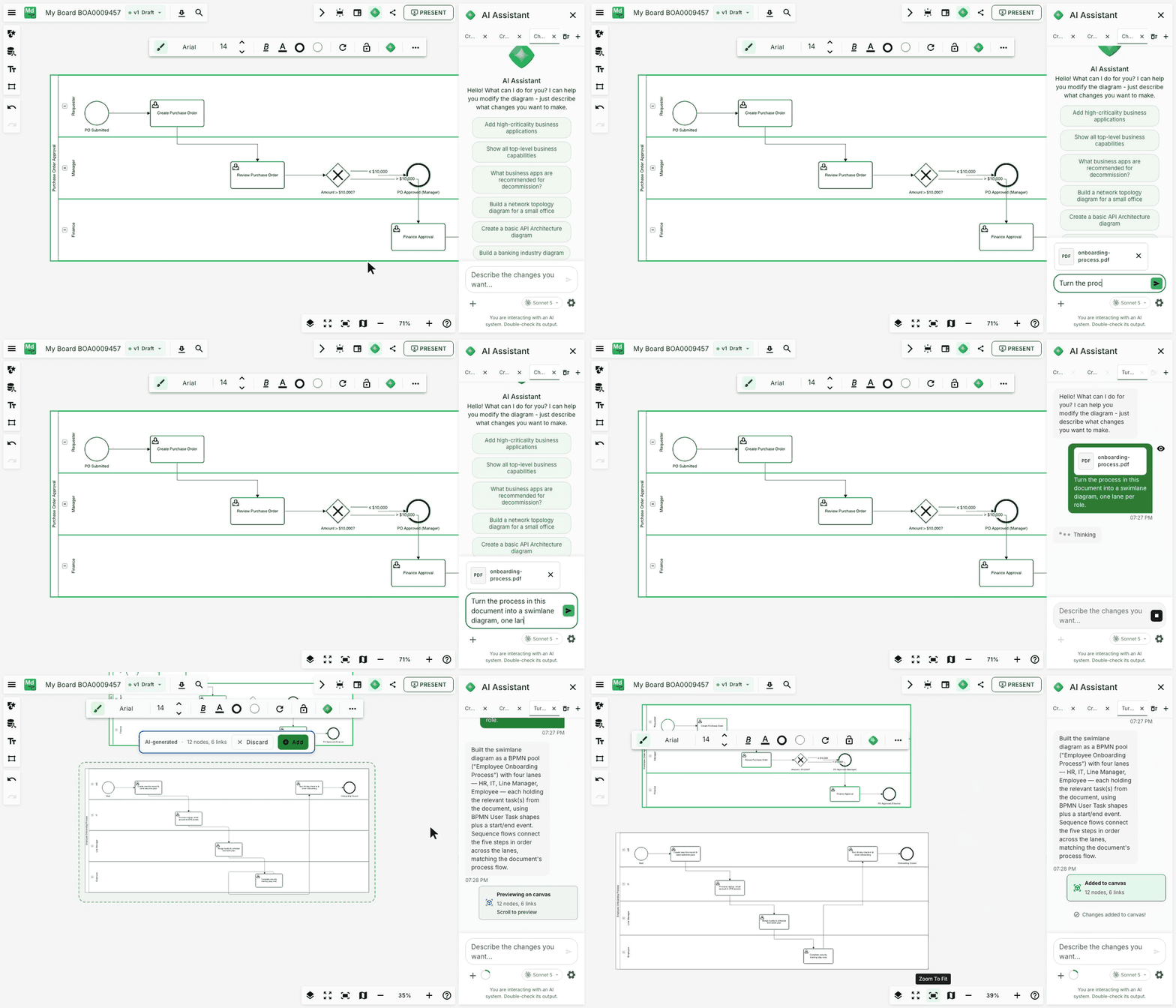
Attach a PDF and ask for a swimlane diagram of the process it describes
Attachments stay in the conversation: a follow-up question still sees the file you attached earlier in the same session.
## What the AI Does with an Image
When you send an image along with a diagram-related request (for example, *"Recreate this diagram"*), the AI will:
1. Analyze the image to identify nodes, connections, groups, and labels.
2. Generate a diagram that matches the image as closely as possible. A board built from a dashboard or web page keeps the proportions and layout of the original instead of stacking everything in one column.
3. Show you a preview so you can review it before applying. See [Reviewing & Staging Changes](/models/work-in-the-app/ai/staging.md).
## What the AI Does with a Document
With a PDF or text file the AI reads the content and builds what you ask for from it: *"Turn the process in this document into a swimlane diagram, one lane per role"*, *"Draw the architecture described in chapter 3"*, or *"Summarise this document as a slide deck"*. See [Slide Decks](/models/work-in-the-app/ai/slide-decks.md).
## Tips for Good Results
* **Crop the image** before attaching it so the AI focuses on the diagram, not the surrounding page or background.
* **Make sure labels are legible.** Handwritten text works, but clearer writing gives better results.
* **Combine an image with a prompt.** Instead of just attaching, say what you want: *"Recreate this as a flowchart"* or *"Use this as a reference for the layout, but with our standard shapes."*
* **Iterate.** If the first result isn't quite right, reply with corrections rather than starting over: *"Move the database to the right"* or *"Rename the top node to 'API Gateway'."*
## Related
* [AI Chat](/models/work-in-the-app/ai/chat.md) – Sending messages and prompts
* [Reviewing & Staging Changes](/models/work-in-the-app/ai/staging.md) – Previewing what the AI builds
---
# Agent Instructions
This documentation is published with GitBook. GitBook is the documentation platform designed so that both humans and AI agents can read, navigate, and reason over technical content effectively. Learn more at gitbook.com.
## Querying This Documentation
If you need additional information that is not directly available in this page, you can query the documentation by asking a question.
Perform an HTTP GET request on the following URL with the `ask` and `goal` query parameters:
```
GET https://docs.ins-pi.com/models/work-in-the-app/ai/images.md?ask=&goal=
```
`ask` is the immediate question: it should be specific, self-contained, and written in natural language.
`goal` is what the user is ultimately trying to achieve, the reason they need the answer. Sharing it helps GitBook give you a better, more relevant answer. A goal is most helpful when it describes the outcome the user wants rather than restating the question. For example, with `ask=how do I create an API token`, a goal like `automate deployments from our CI pipeline` lets GitBook tailor the answer to that use case.
The response will contain a direct answer to the question and relevant excerpts and sources from the documentation.
Use this mechanism when the answer is not explicitly present in the current page, you need clarification or additional context, or you want to retrieve related documentation sections.