> For the complete documentation index, see [llms.txt](https://docs.ins-pi.com/llms.txt). Markdown versions of documentation pages are available by appending `.md` to page URLs; this page is available as [Markdown](https://docs.ins-pi.com/models/work-in-the-app/ai/models.md).
# Choosing a Model
The AI Assistant can run on several AI models. Faster models answer small edits in seconds; stronger models handle large diagrams, documents and research decks more reliably. You pick the model per chat session from the selector under the composer.
## The Model Selector
Below the message box, next to the attachment button, the current model is shown with its provider icon. Click it to open the list and pick another model. The choice applies to the current chat session; a new session starts with the default again.
The model selector under the composer
The list shows only the models your administrator has enabled. See [AI Configuration](/models/admin/ai-configuration.md).
## Which Model to Use
| Task | Suggested model |
| ------------------------------------------------------ | ----------------------------- |
| Renaming, recolouring, moving a few elements | The default fast model |
| A diagram of 10 to 30 elements from a prompt | A mid-range model |
| BPMN, C4 or ArchiMate diagrams with several containers | A stronger model |
| Rebuilding a board from a PDF or a long document | A stronger model |
| Research slide decks | The strongest model available |
A **model hint** appears under the composer when the Assistant thinks a different model would suit your request better, for example when you ask for a deck while a fast model is selected.
## Runs That Stop Early
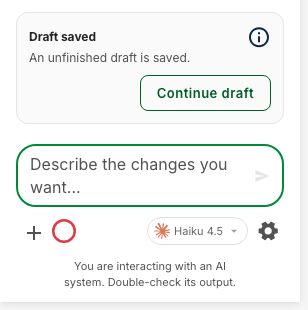
Every run has a token budget. If a task is too large for the selected model, the Assistant stops, keeps your board unchanged and shows a **Draft saved** card. Switch to a stronger model and click **Continue draft**, or type *"continue"*.
A run that stopped early: the board is unchanged and the draft can be continued
## Related
* [AI Chat](/models/work-in-the-app/ai/chat.md) – Sending prompts
* [Slide Decks](/models/work-in-the-app/ai/slide-decks.md) – The most demanding task
* [AI Configuration (admin)](/models/admin/ai-configuration.md) – Enabling models and providers
---
# Agent Instructions
This documentation is published with GitBook. GitBook is the documentation platform designed so that both humans and AI agents can read, navigate, and reason over technical content effectively. Learn more at gitbook.com.
## Querying This Documentation
If you need additional information that is not directly available in this page, you can query the documentation by asking a question.
Perform an HTTP GET request on the following URL with the `ask` and `goal` query parameters:
```
GET https://docs.ins-pi.com/models/work-in-the-app/ai/models.md?ask=&goal=
```
`ask` is the immediate question: it should be specific, self-contained, and written in natural language.
`goal` is what the user is ultimately trying to achieve, the reason they need the answer. Sharing it helps GitBook give you a better, more relevant answer. A goal is most helpful when it describes the outcome the user wants rather than restating the question. For example, with `ask=how do I create an API token`, a goal like `automate deployments from our CI pipeline` lets GitBook tailor the answer to that use case.
The response will contain a direct answer to the question and relevant excerpts and sources from the documentation.
Use this mechanism when the answer is not explicitly present in the current page, you need clarification or additional context, or you want to retrieve related documentation sections.