> For the complete documentation index, see [llms.txt](https://docs.ins-pi.com/llms.txt). Markdown versions of documentation pages are available by appending `.md` to page URLs; this page is available as [Markdown](https://docs.ins-pi.com/models/work-in-the-app/ai/slide-decks.md).
# Slide Decks
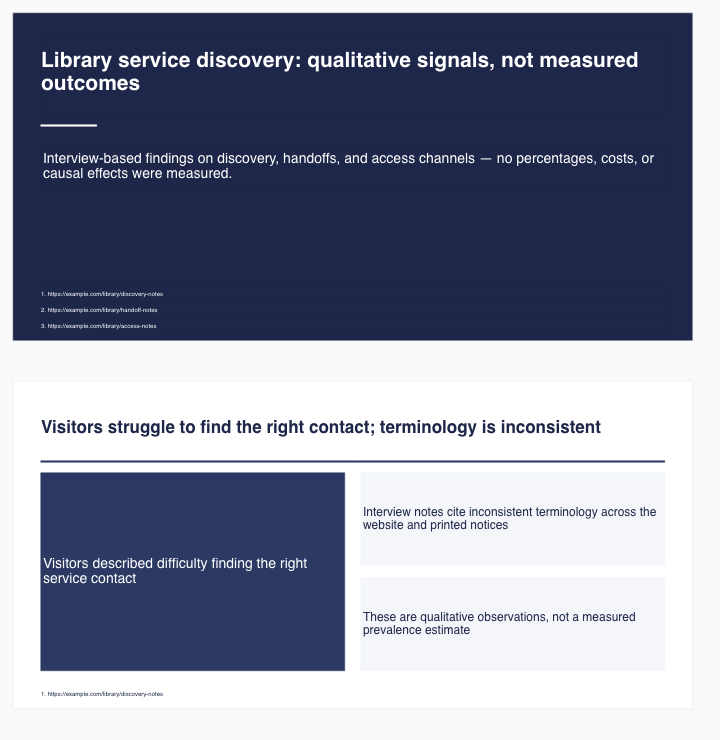
Ask the AI Assistant for a presentation and it lays out a deck of slides on your board: a title slide, one slide per finding, charts where the data supports them, and source citations in the footer of each slide. The slides are ordinary board content, so you can restyle them, export them or present them straight from the board.
Title and finding slides generated from a research prompt
## Asking for a Deck
Say "slide deck" or "presentation" and describe the topic and the number of slides:
* *"Create a six-slide deck on the top 10 CRM vendors by revenue, with a comparison chart."*
* *"Build a presentation summarising this document."* with a PDF attached, see [Attaching Files & Images](/models/work-in-the-app/ai/images.md)
* *"Make a short deck on our application portfolio: one slide per business capability with the app count."*
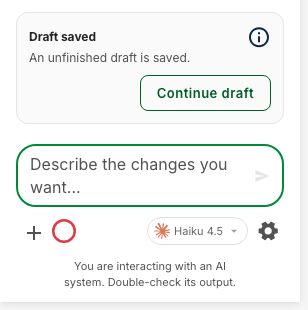
The Assistant researches the topic, drafts an outline and then renders the slides. Large decks take a few minutes. A **Draft saved** card appears if the run stops early; click **Continue draft** to resume where it left off.
The Draft saved card
## What a Slide Contains
* A headline that states the takeaway, not just the topic.
* Bullet points or a two-column layout for findings.
* A chart when figures are involved, such as revenue rankings or currency comparisons.
* Numbered citations at the bottom, up to eight per slide.
Slides are placed as a vertical stack. Select them all and use the alignment tools if you prefer a grid.
## Editing a Deck
Follow-up prompts work on the existing deck instead of rebuilding it:
* *"Add a slide about pricing after slide 3."* adds one slide and leaves the rest untouched.
* *"Shorten the bullets on the second slide."*
* *"Change the title slide to 'Vendor Landscape 2026'."*
## Choosing a Model
Research decks are the most demanding task the Assistant runs. The model hint under the composer recommends a stronger model for decks and a faster one for small edits. See [Choosing a Model](/models/work-in-the-app/ai/models.md).
## Related
* [AI Chat](/models/work-in-the-app/ai/chat.md) – Sending prompts
* [Reviewing & Staging Changes](/models/work-in-the-app/ai/staging.md) – Previewing the deck before it lands
* [Presentation Mode](/models/work-in-the-app/presentation-mode.md) – Presenting the finished board
* [Export](/models/work-in-the-app/editor/export.md) – Exporting slides as images or PDF
---
# Agent Instructions
This documentation is published with GitBook. GitBook is the documentation platform designed so that both humans and AI agents can read, navigate, and reason over technical content effectively. Learn more at gitbook.com.
## Querying This Documentation
If you need additional information that is not directly available in this page, you can query the documentation by asking a question.
Perform an HTTP GET request on the following URL with the `ask` and `goal` query parameters:
```
GET https://docs.ins-pi.com/models/work-in-the-app/ai/slide-decks.md?ask=&goal=
```
`ask` is the immediate question: it should be specific, self-contained, and written in natural language.
`goal` is what the user is ultimately trying to achieve, the reason they need the answer. Sharing it helps GitBook give you a better, more relevant answer. A goal is most helpful when it describes the outcome the user wants rather than restating the question. For example, with `ask=how do I create an API token`, a goal like `automate deployments from our CI pipeline` lets GitBook tailor the answer to that use case.
The response will contain a direct answer to the question and relevant excerpts and sources from the documentation.
Use this mechanism when the answer is not explicitly present in the current page, you need clarification or additional context, or you want to retrieve related documentation sections.