> For the complete documentation index, see [llms.txt](https://docs.ins-pi.com/llms.txt). Markdown versions of documentation pages are available by appending `.md` to page URLs; this page is available as [Markdown](https://docs.ins-pi.com/models/work-in-the-app/editor/data-hub.md).
# Data Hub
The **Data Hub** in YouDesign Models enables users to search, filter, and add data from ServiceNow tables directly onto boards. A row in the Data Hub is a **record**; older releases called it an "element".
## Using the Data Hub
### Steps to Use the Data Hub
#### 1. Open Data Hub Panel
Click on the **Data Hub** icon in the Control Bar to open the panel on the left side of the screen.
#### 2. Select or Search for a Table
Click on **Select source table** to choose or search for a table. Tables are grouped by Shape Categories and only tables with the Data Hub option activated for a shape are displayed.
#### 3. View Data Results
Once you select a table (e.g., Business Capability), the data will be shown in the Results section.
## Adding Items to the Board
You can add items from the Data Hub to the board using two methods:

### Drag & Drop
* Drag an item from the Results list and drop it on the board.
### Click & Click
* Click on the item in the Results list, move the mouse to the board, and click again to place the item.
### Adding Multiple Items or Hierarchies
#### Multiple Items
Drag & Drop the top item representing the table name to add all or multiple items from the search result.

#### Hierarchy of Items
Drag & Drop a parent hierarchy item, and YouDesign Models will load the full sub-hierarchy including child items.

#### A Single Record Without Its Hierarchy
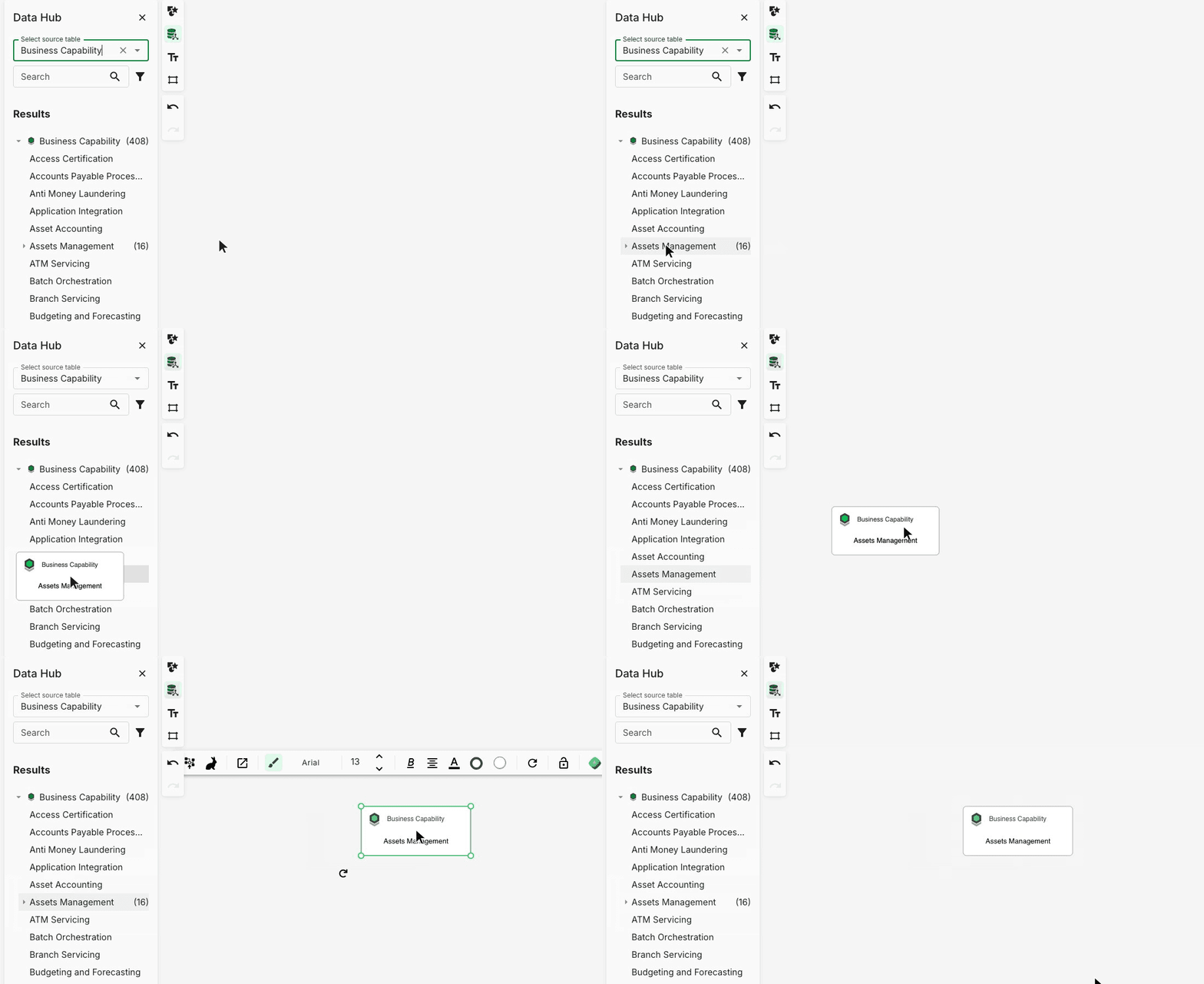
Dragging a parent record normally loads its whole sub-hierarchy. To place just that one record, hold **Alt** (Windows) or **Option** (Mac) while dragging, or focus the row and press **Alt+Enter**. While the key is held, the child count and expand arrow disappear from the list to show that only the record itself will be inserted.
Alt+drag inserts one record and leaves its 16 children in the Data Hub
## Data Hub Search
To search for specific data within the selected table, enter the search string, and YouDesign Models will return matching results.
## Data Hub Filter
YouDesign Models's filtering system offers three levels of filtering—Global, Teamspace, and Personal filters. These filters ensure only relevant data is shown based on user roles.
| Filter | Description | Role |
| ------------- | --------------------------------------------------------------------------------------------------------------------------------------------------------------- | ---------------------- |
| **Global** | Applied across all Teamspaces and Boards by YouDesign Models Admin. Cannot be changed by other users. | YouDesign Models Admin |
| **Teamspace** | Defined by the Teamspace Admin and applied across all Boards within the Teamspace. Only Teamspace Admins and YouDesign Models Admins can change these settings. | Teamspace Admin |
| **Personal** | Personal filters are specific to Editors. These are only visible to the user and are applied after Global and Teamspace filters. | Editor (login user) |
### Applying Personal Filters
To apply **Personal Filters**, simply turn on the switch in the **Personal filter chip** for the selected table.
## Dropping Items into Frames or Groups
When you drag a Data Hub item onto a **frame**, **group**, or **visualization container**, YouDesign Models validates whether that container accepts the item as a member:
* **Valid** — the item is added inside the container.
* **Invalid** — the drop is silently rejected. The item is not added, and nothing appears on the canvas.
Most standard shapes drop into frames and groups without issue. Invalid combinations include dropping a frame into another frame, or dropping a shape onto a container on a different layer.
**Exception:** If the drop would create an invalid relationship in a **Hierarchy Map**, a notification appears explaining why. For other container types, the rejection is silent — if a drop seems to "do nothing," try dropping onto an empty area of the canvas instead and then moving it manually.
## Related
* [Data Panel](/models/work-in-the-app/editor/data-inspector.md) — inspect the record behind a Data Hub item once it's on the canvas
* [Load Dependencies](/models/work-in-the-app/editor/load-dependencies.md) — grow a diagram outward from an item you've dropped
* [HOP (Hover-Over Panel)](/models/work-in-the-app/editor/hop.md) — another way to explore neighbors of a record
* [Commit](/models/work-in-the-app/editor/commit.md) — commit future-state items created via Data Hub
---
# Agent Instructions
This documentation is published with GitBook. GitBook is the documentation platform designed so that both humans and AI agents can read, navigate, and reason over technical content effectively. Learn more at gitbook.com.
## Querying This Documentation
If you need additional information that is not directly available in this page, you can query the documentation by asking a question.
Perform an HTTP GET request on the following URL with the `ask` and `goal` query parameters:
```
GET https://docs.ins-pi.com/models/work-in-the-app/editor/data-hub.md?ask=&goal=
```
`ask` is the immediate question: it should be specific, self-contained, and written in natural language.
`goal` is what the user is ultimately trying to achieve, the reason they need the answer. Sharing it helps GitBook give you a better, more relevant answer. A goal is most helpful when it describes the outcome the user wants rather than restating the question. For example, with `ask=how do I create an API token`, a goal like `automate deployments from our CI pipeline` lets GitBook tailor the answer to that use case.
The response will contain a direct answer to the question and relevant excerpts and sources from the documentation.
Use this mechanism when the answer is not explicitly present in the current page, you need clarification or additional context, or you want to retrieve related documentation sections.