> For the complete documentation index, see [llms.txt](https://docs.ins-pi.com/llms.txt). Markdown versions of documentation pages are available by appending `.md` to page URLs; this page is available as [Markdown](https://docs.ins-pi.com/models/work-in-the-app/editor/entity-tables.md).
# Entity Tables (ERD)
**Entity Table** and **Entity Field** are two shapes in the Basic Shapes library for drawing entity-relationship diagrams. An Entity Table shows an entity name in its header and a list of field rows with key markers and data types. Connect tables with relationships to show how entities relate.
Add a field, connect two tables, collapse a table
## Adding an Entity Table
1. Open the **Diagramming** panel and expand **Shapes > Basic Shapes**.
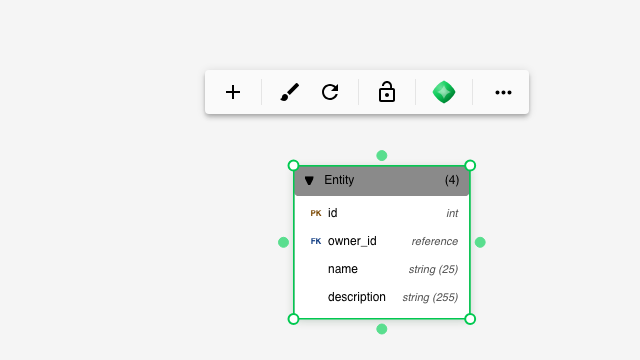
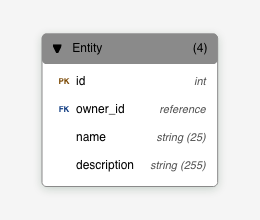
2. Drag **Entity Table** onto the canvas. It arrives with an example entity and four fields you can rename.
A selected Entity Table: Add field (+), style, reset, lock and more
## The Header
* **Entity name** — double-click to rename.
* **Field count** — shown in brackets next to the name.
* **Collapse arrow** — click the triangle to fold the table down to its header, or to expand it again. Relationships stay attached in both states.
## Fields
Each row is an **Entity Field** with three parts:
| Part | Meaning |
| -------------- | ---------------------------------------------------------------------------- |
| **Key marker** | `PK` for a primary key, `FK` for a foreign key, blank for an ordinary field. |
| **Field name** | Double-click to edit. |
| **Type** | Free text such as `int`, `string (25)` or `reference`. Double-click to edit. |
PK and FK markers, field names and types
To add a field, select the table and click **Add field** (the **+**) in the toolbar. The new row takes the styling of its neighbours. You can also drag an **Entity Field** from the palette into a table.
Use the arrow keys to move between rows of a selected table without leaving the keyboard.
## Connecting Tables
Draw a relationship from one table to another exactly as for any shape: select the source table, drag a connector to the target. Use the arrowhead picker on the relationship toolbar to show cardinality, for example a circle-fork for "zero or many". See [Relationships](/models/work-in-the-app/editor/relationships.md).
## Tips
* Give every table a `PK` row first; it keeps the layout consistent across the diagram.
* Collapse tables you are not working on to keep a large model readable.
* Entity Tables are visual shapes. To model ServiceNow tables with live data, use the **Metamodel** library or bind shapes through the [Data Hub](/models/work-in-the-app/editor/data-hub.md).
## Related
* [Shapes](/models/work-in-the-app/editor/shapes.md) — adding and styling shapes
* [Relationships](/models/work-in-the-app/editor/relationships.md) — connectors and arrowheads
* [Shape Libraries](/models/work-in-the-app/editor/shape-libraries.md) — where Entity Table lives
---
# Agent Instructions
This documentation is published with GitBook. GitBook is the documentation platform designed so that both humans and AI agents can read, navigate, and reason over technical content effectively. Learn more at gitbook.com.
## Querying This Documentation
If you need additional information that is not directly available in this page, you can query the documentation by asking a question.
Perform an HTTP GET request on the following URL with the `ask` and `goal` query parameters:
```
GET https://docs.ins-pi.com/models/work-in-the-app/editor/entity-tables.md?ask=&goal=
```
`ask` is the immediate question: it should be specific, self-contained, and written in natural language.
`goal` is what the user is ultimately trying to achieve, the reason they need the answer. Sharing it helps GitBook give you a better, more relevant answer. A goal is most helpful when it describes the outcome the user wants rather than restating the question. For example, with `ask=how do I create an API token`, a goal like `automate deployments from our CI pipeline` lets GitBook tailor the answer to that use case.
The response will contain a direct answer to the question and relevant excerpts and sources from the documentation.
Use this mechanism when the answer is not explicitly present in the current page, you need clarification or additional context, or you want to retrieve related documentation sections.