> For the complete documentation index, see [llms.txt](https://docs.ins-pi.com/llms.txt). Markdown versions of documentation pages are available by appending `.md` to page URLs; this page is available as [Markdown](https://docs.ins-pi.com/models/work-in-the-app/editor/hop.md).
# HOP
The HOP feature in YouDesign Models allows users to explore and query related nodes (elements) in a structured way, visually expanding relationships through multiple levels of connections (up to five hops). This feature provides flexibility in navigating and analyzing dependencies within the system.
[Watch: HOP in YouDesign Models](https://www.youtube.com/watch?v=KV4J_tUQ3xs)
## Accessing the HOP Feature
### 1. Select a Node (Current State Element)
To begin using the HOP feature, select a current state element on your board.
### 2. HOP Icon in the Toolbar
Once a node is selected, the HOP icon, represented by a rabbit, will appear in the toolbar.
Click the rabbit icon to open the HOP settings window.
## Configuring the HOP Query
The HOP settings allow users to customize the depth of their queries by specifying the number of hops, as well as selecting tables and relationships to refine the results.
## HOP Settings Window
* **HOP Levels (1 to 5):** Set the number of hops (or levels) to control the depth of the query. Each hop represents an additional level of relationships.
* Default value: 1 Hop (directly related nodes).
* Up to 5 Hops can be selected to traverse deeper relationships.
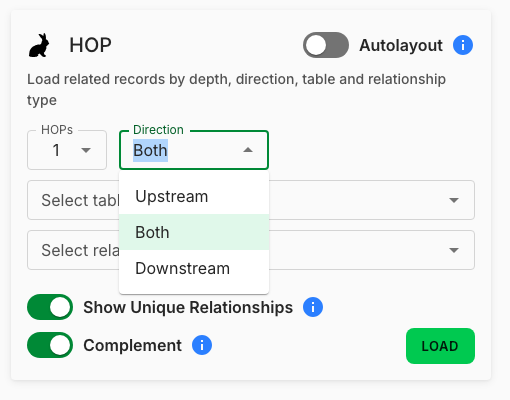
* **Direction:** Choose which way to follow relationships from the selected record.
* **Both** (default) — upstream and downstream.
* **Upstream** — only records the selected record depends on, or that point to it.
* **Downstream** — only records that depend on the selected record.
The Direction option in the HOP settings
* **Table Selection:** Use the drop-down menu to select specific tables to constrain the query to certain datasets. You can search for tables or add multiple tables from the available list.
* If no tables are selected, the query will consider all available tables.
* **Relationship Types:** Specify the relationship types you want the query to consider. By default, all relationship types are included unless specified.
* You can search for specific relationship types and add multiple relationships to the query.
* **Unique Relationships Toggle:** Toggle to only show unique relationships. When enabled, this option ensures that only unique relationships between nodes are shown, preventing duplicate types of connections.
* **Complement Toggle:** Toggle to connect new data to existing elements on the board. When enabled, this option ensures that newly loaded data links to elements already present on the board, preventing duplicate elements and relationships from being created. When disabled, every load will generate new independent elements and relationships, regardless of what already exists on the board.
## Execute the HOP Query

Once all settings are configured:
1. **Click the "LOAD" Button** - Press the **LOAD** button to execute the HOP query. The system will return the related nodes based on the number of hops, tables, and relationships selected.
2. **Loading Indicators** - As the query processes, real-time updates will appear as each hop completes — a per-hop "is loading" message followed by a "has been successfully loaded" confirmation.
3. **View Results on Canvas** - The queried results will be rendered in the canvas, visually expanding to show the nodes connected through the defined hops.
4. **Non-Blocking UI** - While the query is running, users can continue working within the application, as the system ensures that the UI remains responsive and non-blocking.
> **Note:** If no content is found based on the HOP query, a message will be displayed: "There is no content to be loaded."
> **Warning:** If an error occurs during the query, an error message will guide the user to recheck the settings or attempt the query again.
---
# Agent Instructions
This documentation is published with GitBook. GitBook is the documentation platform designed so that both humans and AI agents can read, navigate, and reason over technical content effectively. Learn more at gitbook.com.
## Querying This Documentation
If you need additional information that is not directly available in this page, you can query the documentation by asking a question.
Perform an HTTP GET request on the following URL with the `ask` and `goal` query parameters:
```
GET https://docs.ins-pi.com/models/work-in-the-app/editor/hop.md?ask=&goal=
```
`ask` is the immediate question: it should be specific, self-contained, and written in natural language.
`goal` is what the user is ultimately trying to achieve, the reason they need the answer. Sharing it helps GitBook give you a better, more relevant answer. A goal is most helpful when it describes the outcome the user wants rather than restating the question. For example, with `ask=how do I create an API token`, a goal like `automate deployments from our CI pipeline` lets GitBook tailor the answer to that use case.
The response will contain a direct answer to the question and relevant excerpts and sources from the documentation.
Use this mechanism when the answer is not explicitly present in the current page, you need clarification or additional context, or you want to retrieve related documentation sections.