> For the complete documentation index, see [llms.txt](https://docs.ins-pi.com/llms.txt). Markdown versions of documentation pages are available by appending `.md` to page URLs; this page is available as [Markdown](https://docs.ins-pi.com/models/work-in-the-app/editor/search.md).
# Search
Canvas search finds elements on the currently-open board — shapes, text, frames, relationships, hierarchies, and more — and lets you jump straight to them. It's the fastest way to locate something on a large or dense diagram.
## Opening Search
Two ways:
* Press **Ctrl+F** (Windows) or **Cmd+F** (Mac)
* Click the **Search** button in the editor toolbar
A search modal opens, centered over the canvas, with the cursor already in the search field. Pressing **Ctrl+F** / **Cmd+F** again while the modal is open brings focus back to the field and selects its text.
## Searching
1. Type your query in the **Search** field.
2. Results appear below, grouped by element type.
3. The count for each group is visible in the group header.
## Result Categories
Results are grouped by the kind of element they belong to. Categories include:
* **Shape** — shape elements on the board
* **Text** — text elements
* **Frame** — frame containers
* **Element** — bound ServiceNow elements
* **Hierarchy** — hierarchy-map items
* **Dependency** — dependency relationships
* **Image** — embedded images
* **References** — reference relationships
* **Related list** — related-list entries
* **Relationships** — standard relationships
* **Visualization** — visualization containers
* **Visual Relationship** — visual-only relationships (no data binding)
Each group can be **collapsed or expanded** independently so you can focus on the type you care about.
## Selecting & Jumping to Results
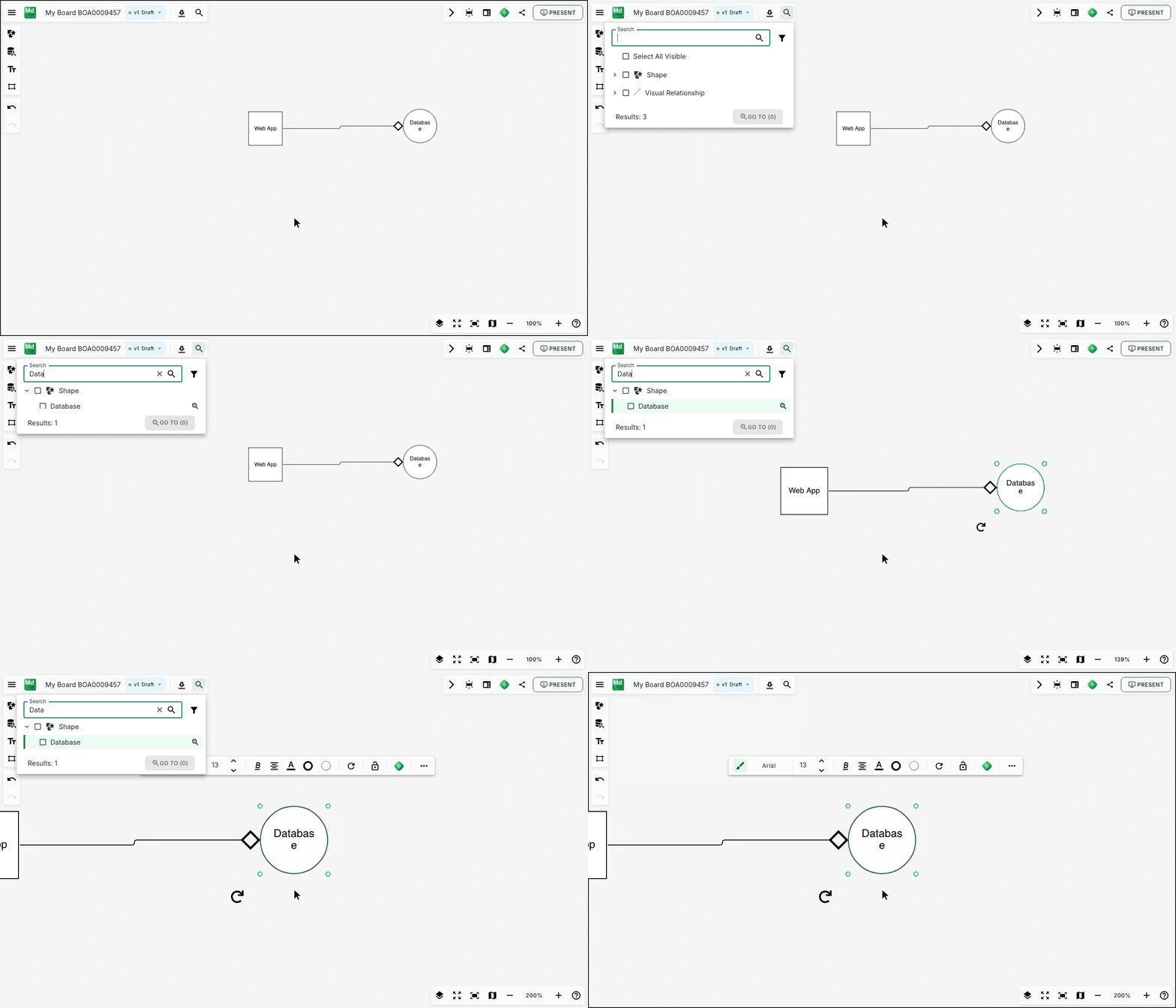
* Press **Enter** to step through the results in the order shown. Each press selects the next result on the board, scrolls to it and highlights its row, while the cursor stays in the search field.
* Click a result (or use the **Go To** action) to focus and pan the canvas to that element.
* Tick the checkboxes to build a set, then use **Go To** to turn the ticked rows into the board selection. Checkboxes start empty every time the modal opens and never mirror what is selected on the board.
* Rows for elements that are currently selected on the board are highlighted with a tint and a leading bar.
Cmd/Ctrl+F, type, then Enter walks the results
## Filtering by Type
A filter button lets you narrow which categories are searched. Toggle off categories you don't want to include. The **All** filter resets to search everything.
## Non-Selectable Elements
Some elements — roadmap objects in read-only visualizations, for example — can be found by search but not selected. Hovering shows the tooltip: *"Roadmap object is not selectable."* You can still Go To them to bring them into view.
## Limits & Gotchas
* **Search is scoped to the active board version** — switching versions runs a fresh search.
* **Hidden layers are not searched** — if a result seems "missing," check whether its layer is hidden via the [Layers](/models/work-in-the-app/editor/layers.md) panel.
* **Query matches are substring** — no regular expressions or exact-match flags.
* **No search history** — the query is cleared when you close the modal.
## Related
* [Layers](/models/work-in-the-app/editor/layers.md) — toggle visibility so searches include or exclude specific layers
* [Homepage Search](/models/work-in-the-app/homepage/search.md) — search across boards, folders, and teamspaces from the homepage
* [Keyboard Shortcuts](/models/reference/keyboard-shortcuts.md)
---
# Agent Instructions
This documentation is published with GitBook. GitBook is the documentation platform designed so that both humans and AI agents can read, navigate, and reason over technical content effectively. Learn more at gitbook.com.
## Querying This Documentation
If you need additional information that is not directly available in this page, you can query the documentation by asking a question.
Perform an HTTP GET request on the following URL with the `ask` and `goal` query parameters:
```
GET https://docs.ins-pi.com/models/work-in-the-app/editor/search.md?ask=&goal=
```
`ask` is the immediate question: it should be specific, self-contained, and written in natural language.
`goal` is what the user is ultimately trying to achieve, the reason they need the answer. Sharing it helps GitBook give you a better, more relevant answer. A goal is most helpful when it describes the outcome the user wants rather than restating the question. For example, with `ask=how do I create an API token`, a goal like `automate deployments from our CI pipeline` lets GitBook tailor the answer to that use case.
The response will contain a direct answer to the question and relevant excerpts and sources from the documentation.
Use this mechanism when the answer is not explicitly present in the current page, you need clarification or additional context, or you want to retrieve related documentation sections.